> ## Documentation Index
> Fetch the complete documentation index at: https://docs.osto.one/llms.txt
> Use this file to discover all available pages before exploring further.
# AutoComply
> Get your workspace audit-ready — activate a compliance framework, generate policies, track controls and tasks, and run security awareness training.
**AutoComply** (under **Compliance**) automates the busywork of getting audit-ready. Activate a framework like SOC 2, and Osto maps out the requirements, controls, policies, and tasks you need — then helps you generate policies, assign training, and track everything to completion in one place.
> **Path:** Compliance → AutoComply
## First-run setup
The first time you open AutoComply, a **Guided Setup** assistant walks you through enabling compliance for your workspace. It captures a few essentials used throughout your policies and attestations:
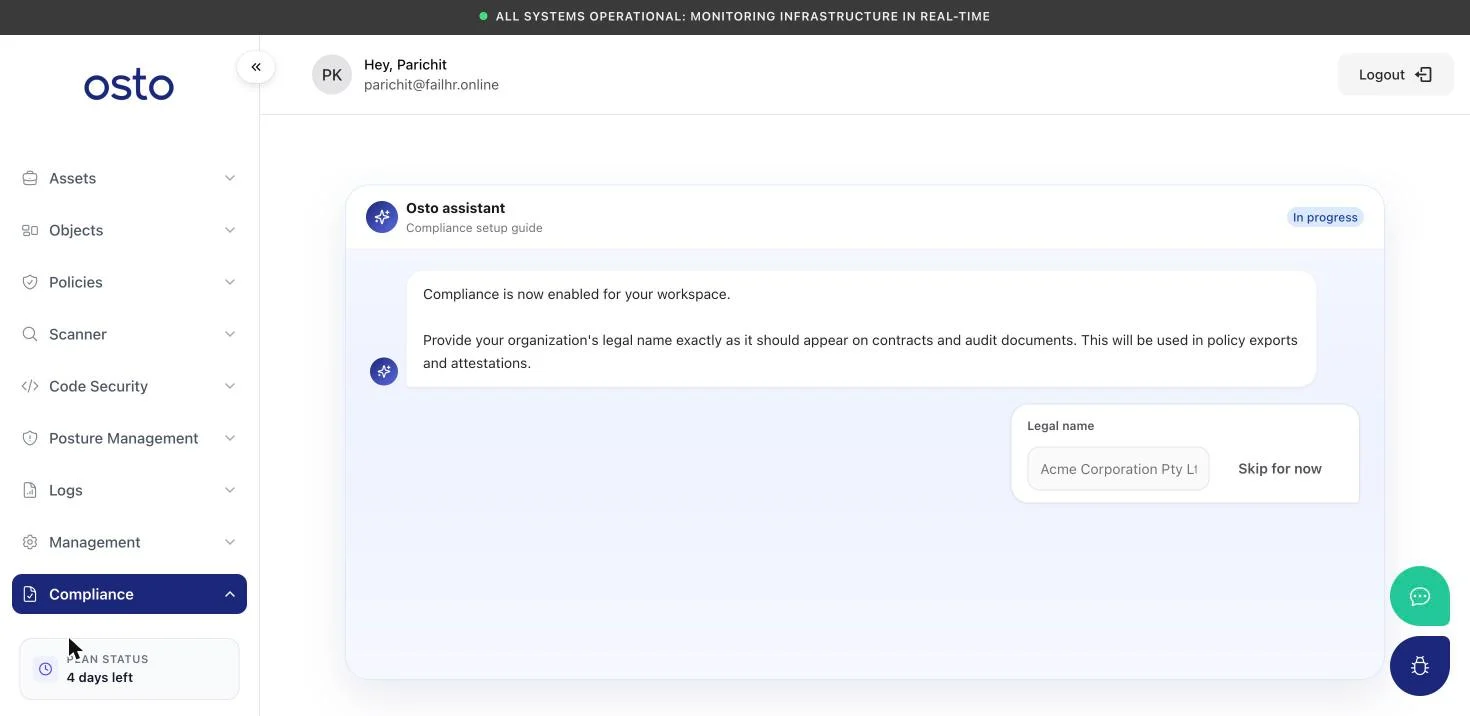 1. **Enable compliance** for your workspace.
2. **Organization legal name** — exactly as it should appear on contracts and audit documents.
3. **Default policy author** — chosen from your workspace admins; listed as the author on generated policies.
4. **Policy logo** — branding for generated documents.
5. **Activate your first framework**.
Everything you enter during setup can be edited later under **Compliance → Settings**.
Once setup completes, Compliance expands into the full AutoComply console, with sections for Frameworks, Policies, Tasks, Awareness Training, and Settings. A role switcher in the top-right toggles between the **Admin** console and the **Employee** self-service view.
## Frameworks
The **Frameworks** page lists the compliance standards you can work toward. **SOC 2 Type II** is available to activate today; others — CCPA, FedRAMP, GDPR, HIPAA, ISO 27001:2022, ISO 42001:2023, and PCI-DSS v4.0 — are on the roadmap and marked *Coming soon*.
1. **Enable compliance** for your workspace.
2. **Organization legal name** — exactly as it should appear on contracts and audit documents.
3. **Default policy author** — chosen from your workspace admins; listed as the author on generated policies.
4. **Policy logo** — branding for generated documents.
5. **Activate your first framework**.
Everything you enter during setup can be edited later under **Compliance → Settings**.
Once setup completes, Compliance expands into the full AutoComply console, with sections for Frameworks, Policies, Tasks, Awareness Training, and Settings. A role switcher in the top-right toggles between the **Admin** console and the **Employee** self-service view.
## Frameworks
The **Frameworks** page lists the compliance standards you can work toward. **SOC 2 Type II** is available to activate today; others — CCPA, FedRAMP, GDPR, HIPAA, ISO 27001:2022, ISO 42001:2023, and PCI-DSS v4.0 — are on the roadmap and marked *Coming soon*.
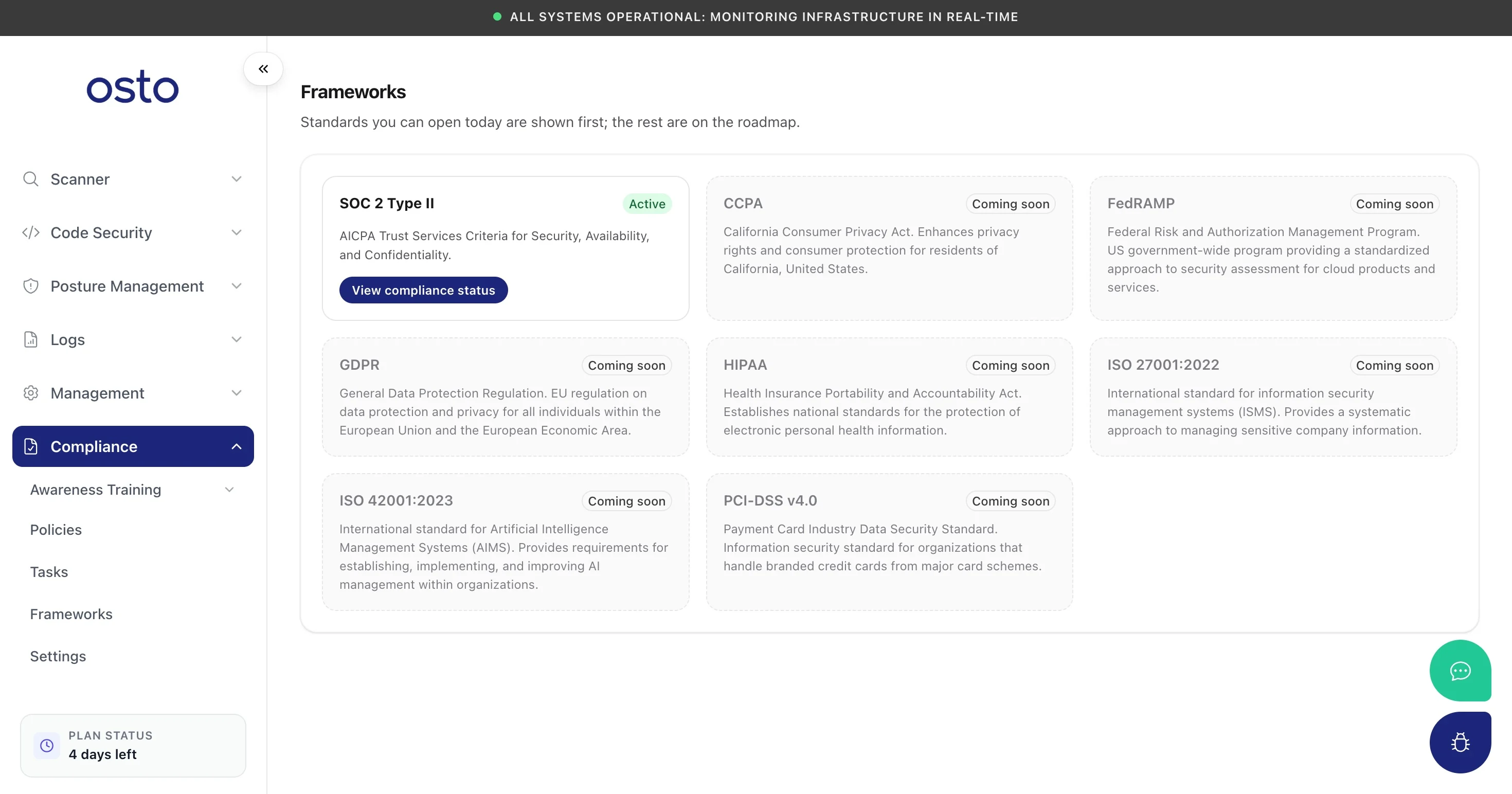 Select **View compliance status** on an active framework to open its requirements:
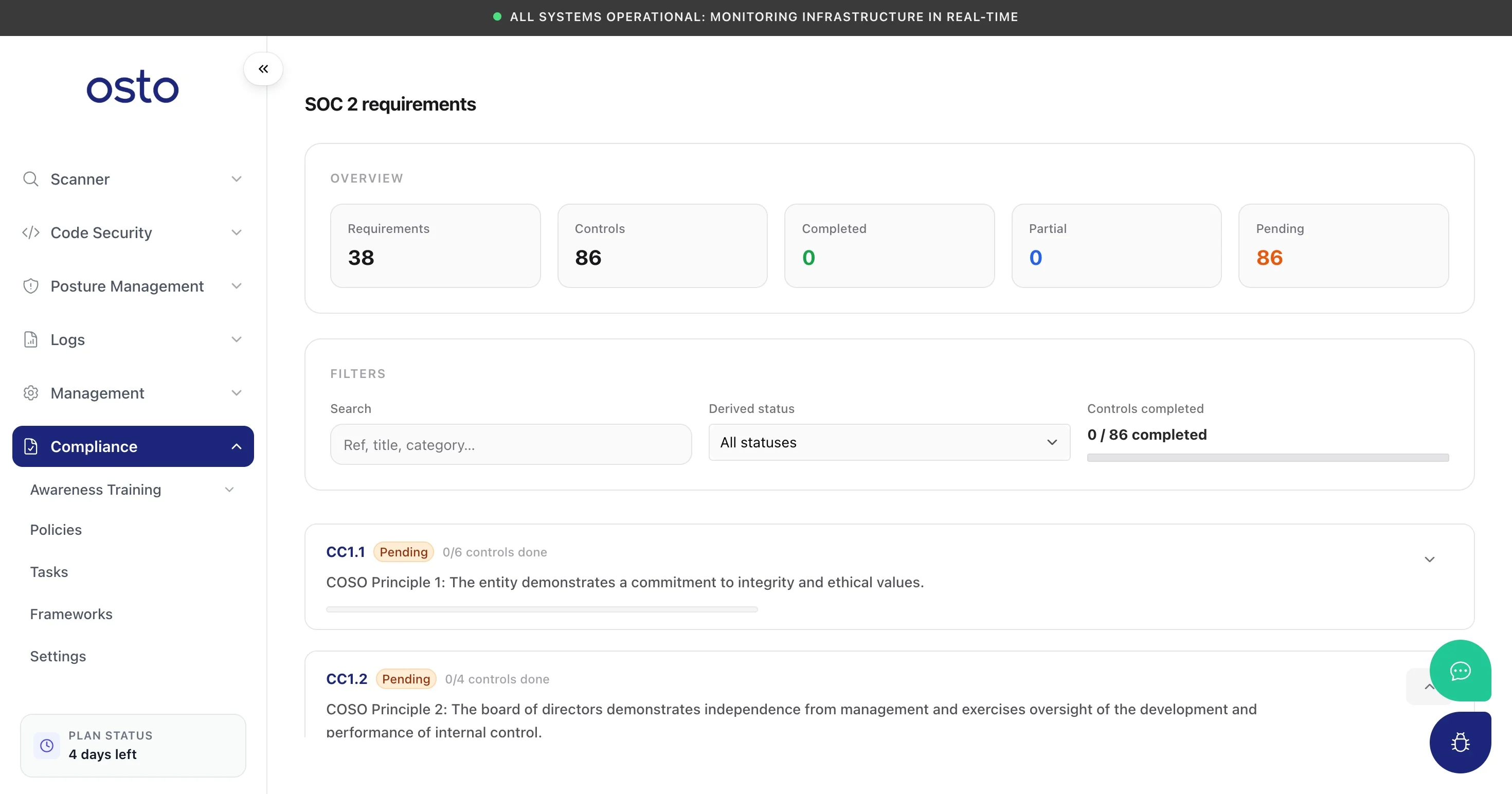 The detail view summarizes the framework's **requirements** and **controls** with how many are completed, partial, or pending, and lets you filter by status or search. Each requirement (mapped to its criterion) lists the controls that satisfy it, and you can **add a control** where needed.
## Policies
The **Policies** page is your library of company policies, pre-mapped to your active framework. Each policy moves through a workflow — **Not started → Draft → Needs approval → Approved** — and the summary counts show where everything stands.
The detail view summarizes the framework's **requirements** and **controls** with how many are completed, partial, or pending, and lets you filter by status or search. Each requirement (mapped to its criterion) lists the controls that satisfy it, and you can **add a control** where needed.
## Policies
The **Policies** page is your library of company policies, pre-mapped to your active framework. Each policy moves through a workflow — **Not started → Draft → Needs approval → Approved** — and the summary counts show where everything stands.
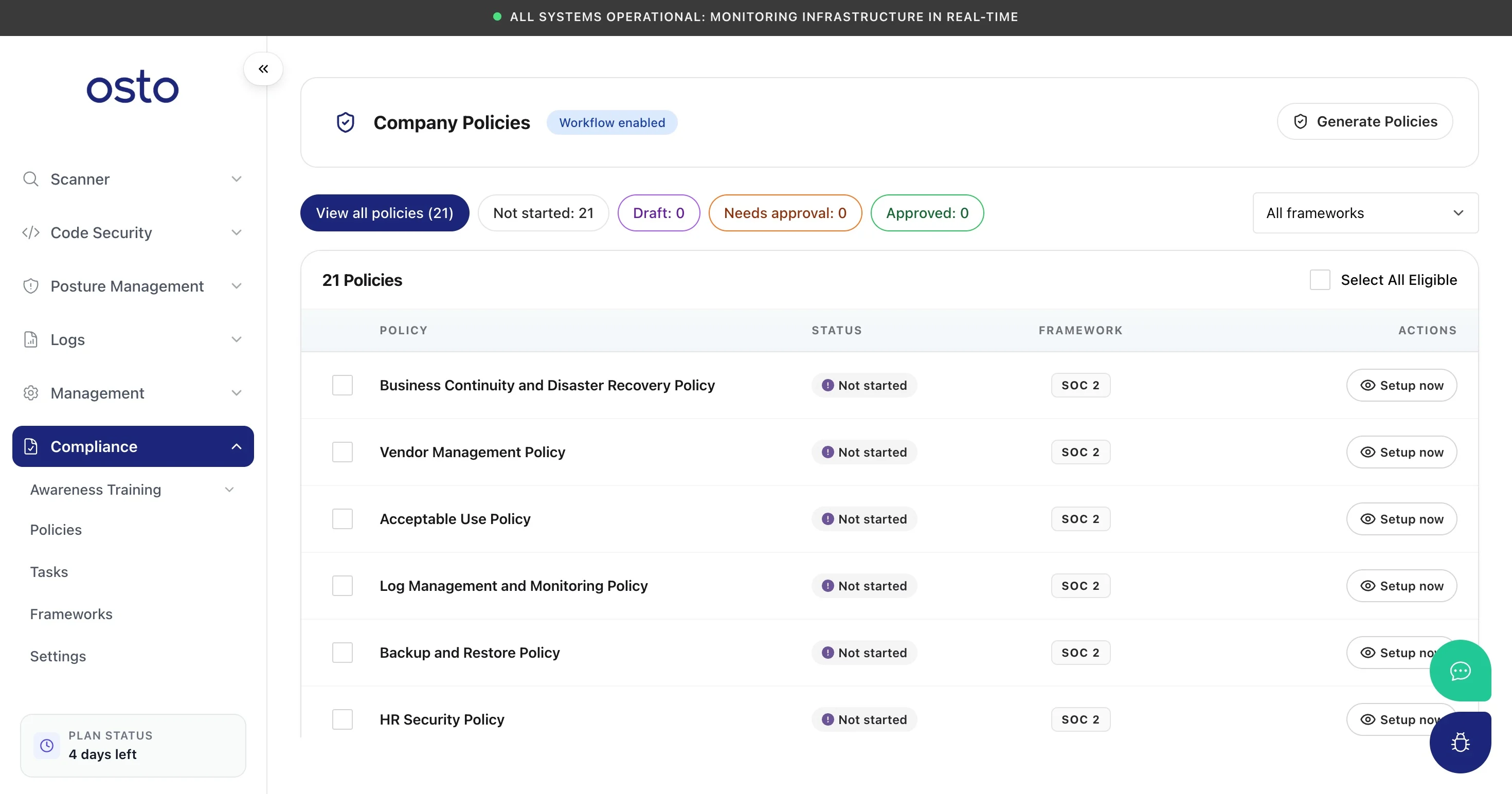 Use **Generate Policies** to draft them from Osto's templates (populated with your organization details), filter by framework, and **Setup now** on any row to work through a single policy. The table shows each policy's **status** and **framework**.
## Tasks
The **Tasks** page is your compliance pipeline — the concrete to-dos that move you toward audit-readiness.
Use **Generate Policies** to draft them from Osto's templates (populated with your organization details), filter by framework, and **Setup now** on any row to work through a single policy. The table shows each policy's **status** and **framework**.
## Tasks
The **Tasks** page is your compliance pipeline — the concrete to-dos that move you toward audit-readiness.
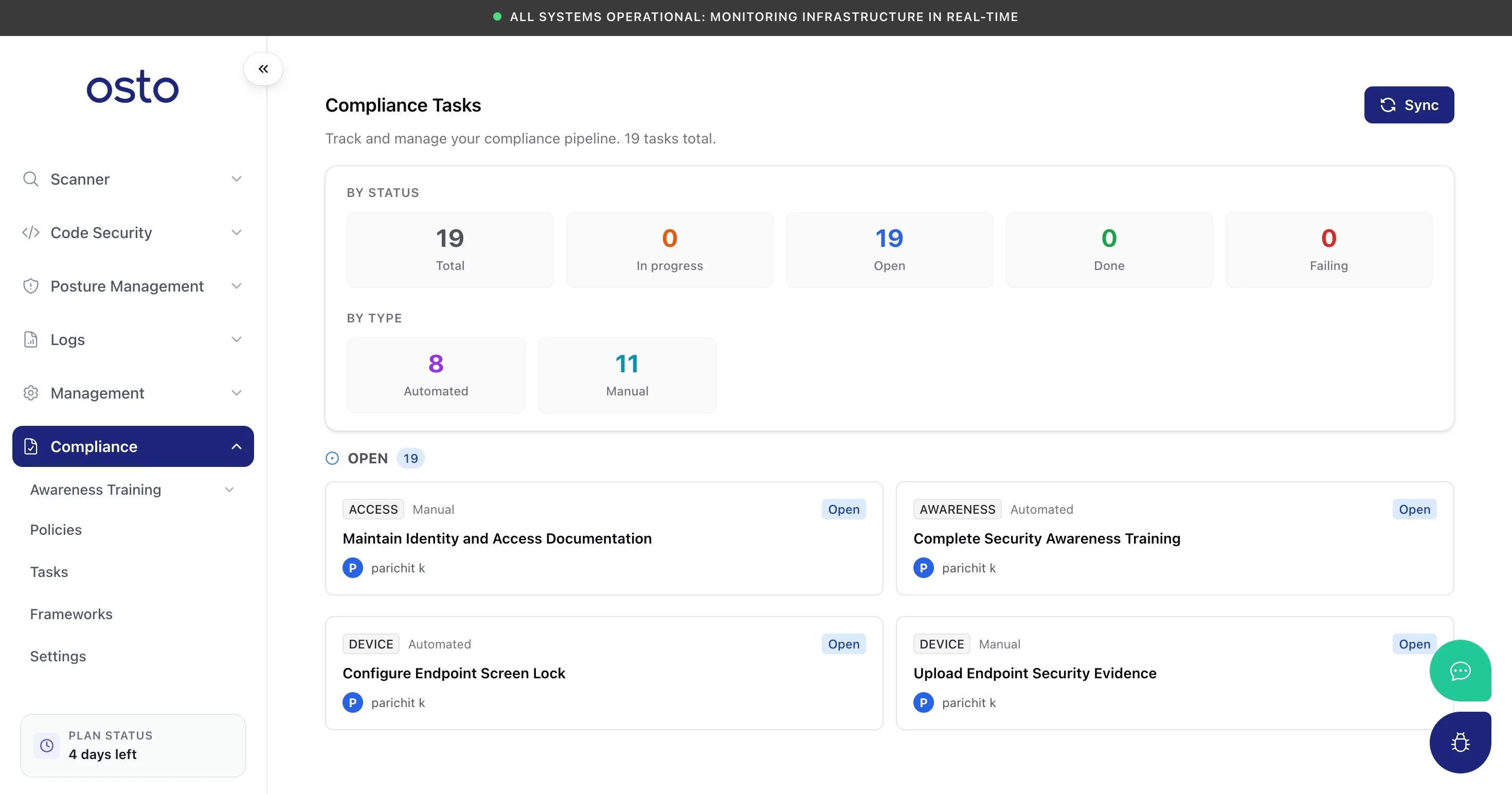 Tasks are summarized **by status** (Open, In progress, Done, Failing) and **by type** (Automated vs. Manual). **Automated** tasks are checked by Osto from the platform itself (for example, WAF/WAAP protection, DLP policies, endpoint screen lock, TLS certificates); **manual** tasks are evidence you record yourself (risk assessments, HR documentation, audits). Filter by status, category, or type, and **Sync** to refresh automated checks.
## Awareness Training
AutoComply includes a full **security awareness training** module so you can satisfy the "train your people" controls every framework requires — build programs from a starter pack, assign them to employees, and track completion. It's a feature in its own right:
Build training programs and modules, assign them to employees, and track completion — plus the employee self-service experience for completing training and acknowledging policies.
## Settings
**Settings** holds the organization details captured during setup — used to populate policy templates and attestations — plus your policy logo.
Tasks are summarized **by status** (Open, In progress, Done, Failing) and **by type** (Automated vs. Manual). **Automated** tasks are checked by Osto from the platform itself (for example, WAF/WAAP protection, DLP policies, endpoint screen lock, TLS certificates); **manual** tasks are evidence you record yourself (risk assessments, HR documentation, audits). Filter by status, category, or type, and **Sync** to refresh automated checks.
## Awareness Training
AutoComply includes a full **security awareness training** module so you can satisfy the "train your people" controls every framework requires — build programs from a starter pack, assign them to employees, and track completion. It's a feature in its own right:
Build training programs and modules, assign them to employees, and track completion — plus the employee self-service experience for completing training and acknowledging policies.
## Settings
**Settings** holds the organization details captured during setup — used to populate policy templates and attestations — plus your policy logo.
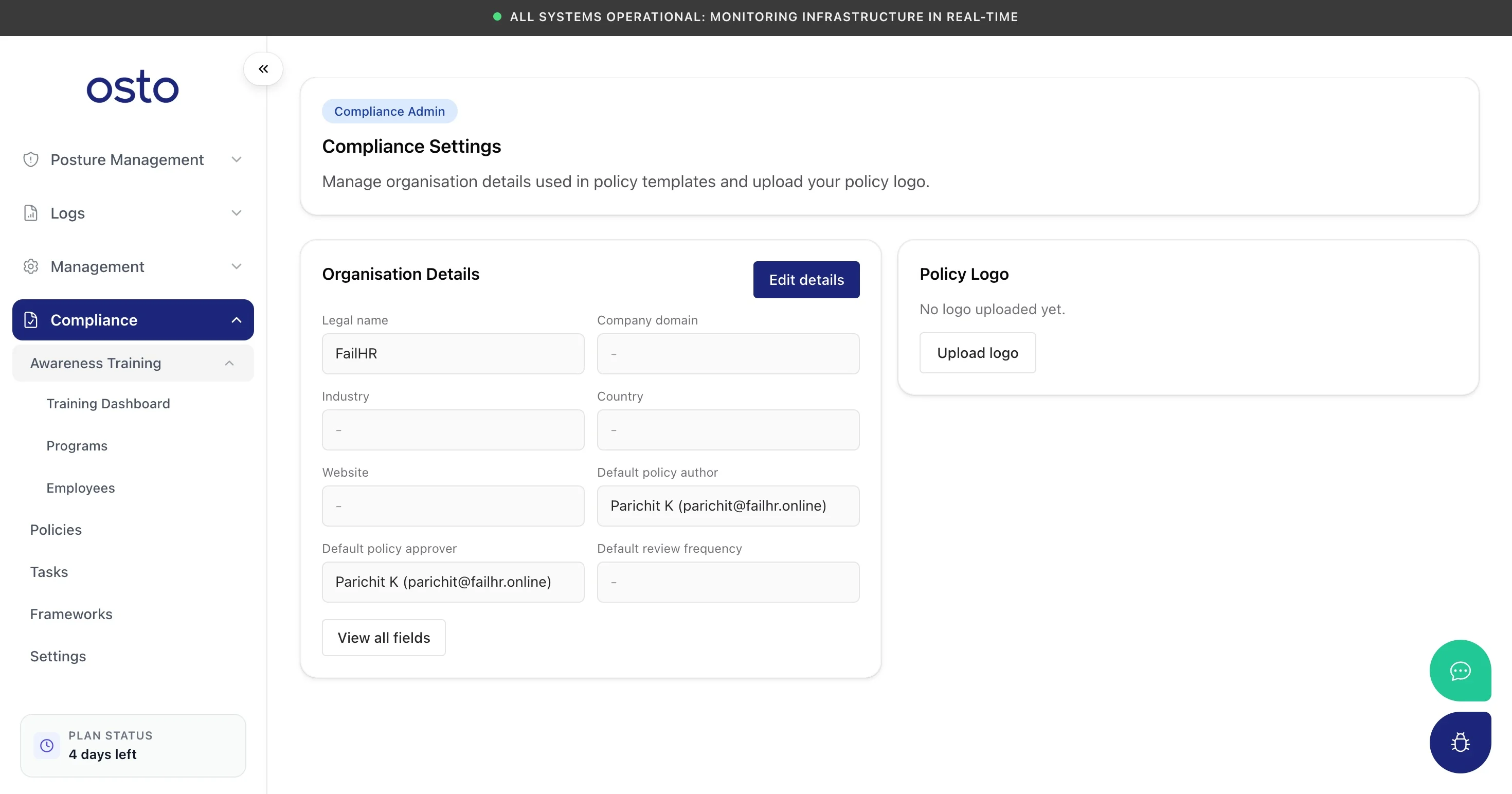 Under **Organisation Details** you can edit your legal name, company domain, industry, country, website, default policy author and approver, and default review frequency. Under **Policy Logo**, upload the logo that appears on generated documents. These values flow into every policy and report AutoComply produces.