> ## Documentation Index
> Fetch the complete documentation index at: https://docs.osto.one/llms.txt
> Use this file to discover all available pages before exploring further.
# Awareness Training
> Build security awareness training programs, assign them to employees, and track completion — plus the employee experience for completing training and acknowledging policies.
**Awareness Training** (under **Compliance**) is AutoComply's built-in security awareness program. Admins build training programs from a ready-made starter pack, assign them to employees, and track completion; employees complete their assigned modules and acknowledge company policies from a self-service portal. Together this satisfies the security-training and policy-acknowledgment controls that frameworks like SOC 2 require.
> **Path:** Compliance → Awareness Training
Awareness Training has two sides: the **admin** experience (build and assign) and the **employee** experience (learn and acknowledge). Use the **role switcher** in the top-right to move between them.
## Admin experience
As an admin, you build training programs, assign them to employees, and track completion across the **Training Dashboard**, **Programs**, **Modules**, and **Employees** pages.
### Training Dashboard
The **Training Dashboard** is your command center. Once programs are assigned, it shows coverage and progress at a glance:
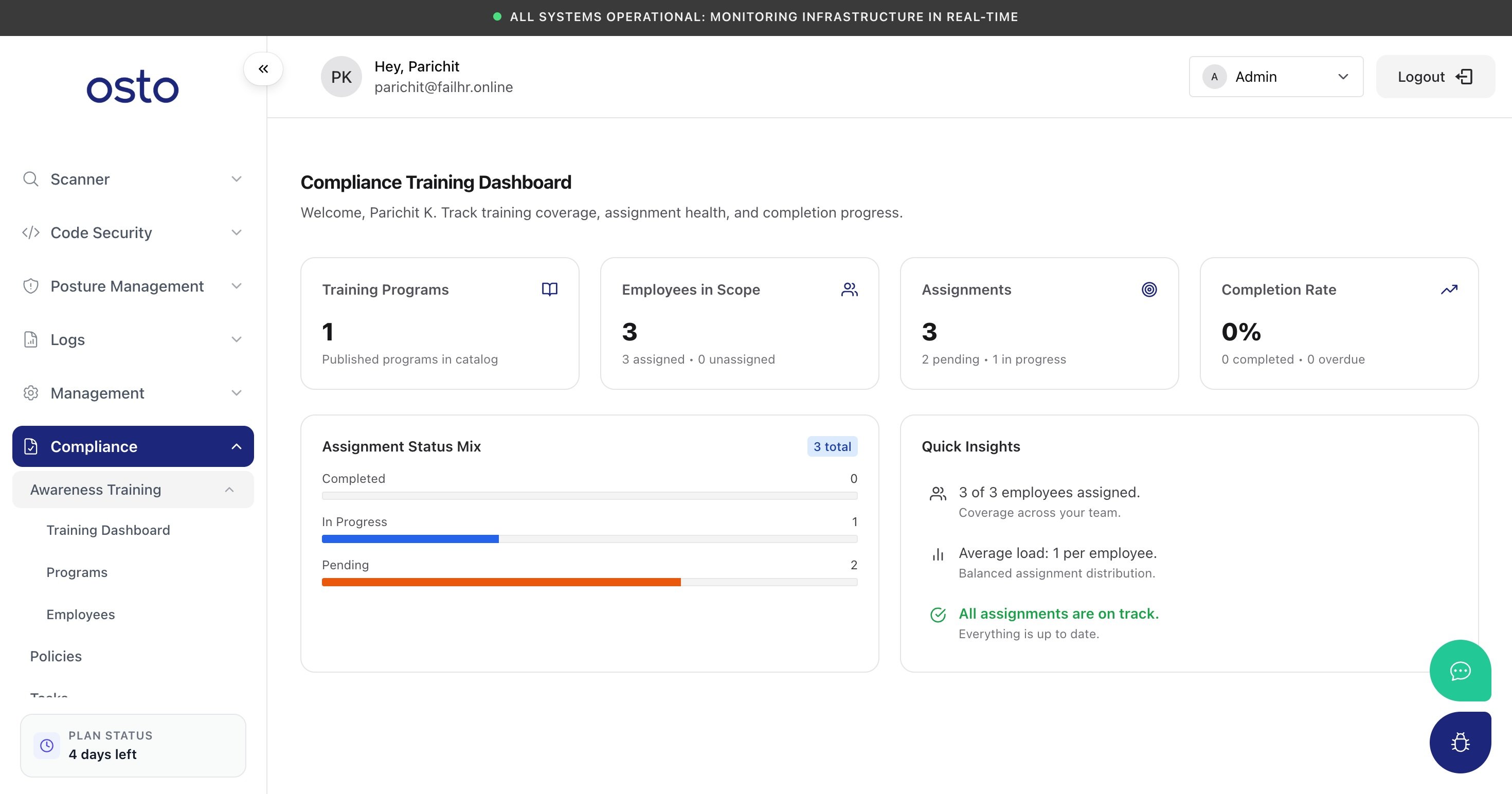 | Metric | What it shows |
| ---------------------- | -------------------------------------------------------- |
| **Training Programs** | Published programs in your catalog. |
| **Employees in Scope** | How many employees are assigned vs. unassigned. |
| **Assignments** | Total assignments, split into pending and in-progress. |
| **Completion Rate** | Percentage completed, with completed and overdue counts. |
Below the KPIs, an **Assignment Status Mix** bar (Completed / In Progress / Pending) and **Quick Insights** summarize coverage, average load per employee, and whether everything is on track.
### Programs
The **Programs** page is your training catalog. Create a program from scratch or **Add starter content** — a ready-made *Security Awareness Training* program covering core cybersecurity topics. Each program can be edited, duplicated, or deleted.
Open **View Details** on a program to manage its settings and assignments:
| Metric | What it shows |
| ---------------------- | -------------------------------------------------------- |
| **Training Programs** | Published programs in your catalog. |
| **Employees in Scope** | How many employees are assigned vs. unassigned. |
| **Assignments** | Total assignments, split into pending and in-progress. |
| **Completion Rate** | Percentage completed, with completed and overdue counts. |
Below the KPIs, an **Assignment Status Mix** bar (Completed / In Progress / Pending) and **Quick Insights** summarize coverage, average load per employee, and whether everything is on track.
### Programs
The **Programs** page is your training catalog. Create a program from scratch or **Add starter content** — a ready-made *Security Awareness Training* program covering core cybersecurity topics. Each program can be edited, duplicated, or deleted.
Open **View Details** on a program to manage its settings and assignments:
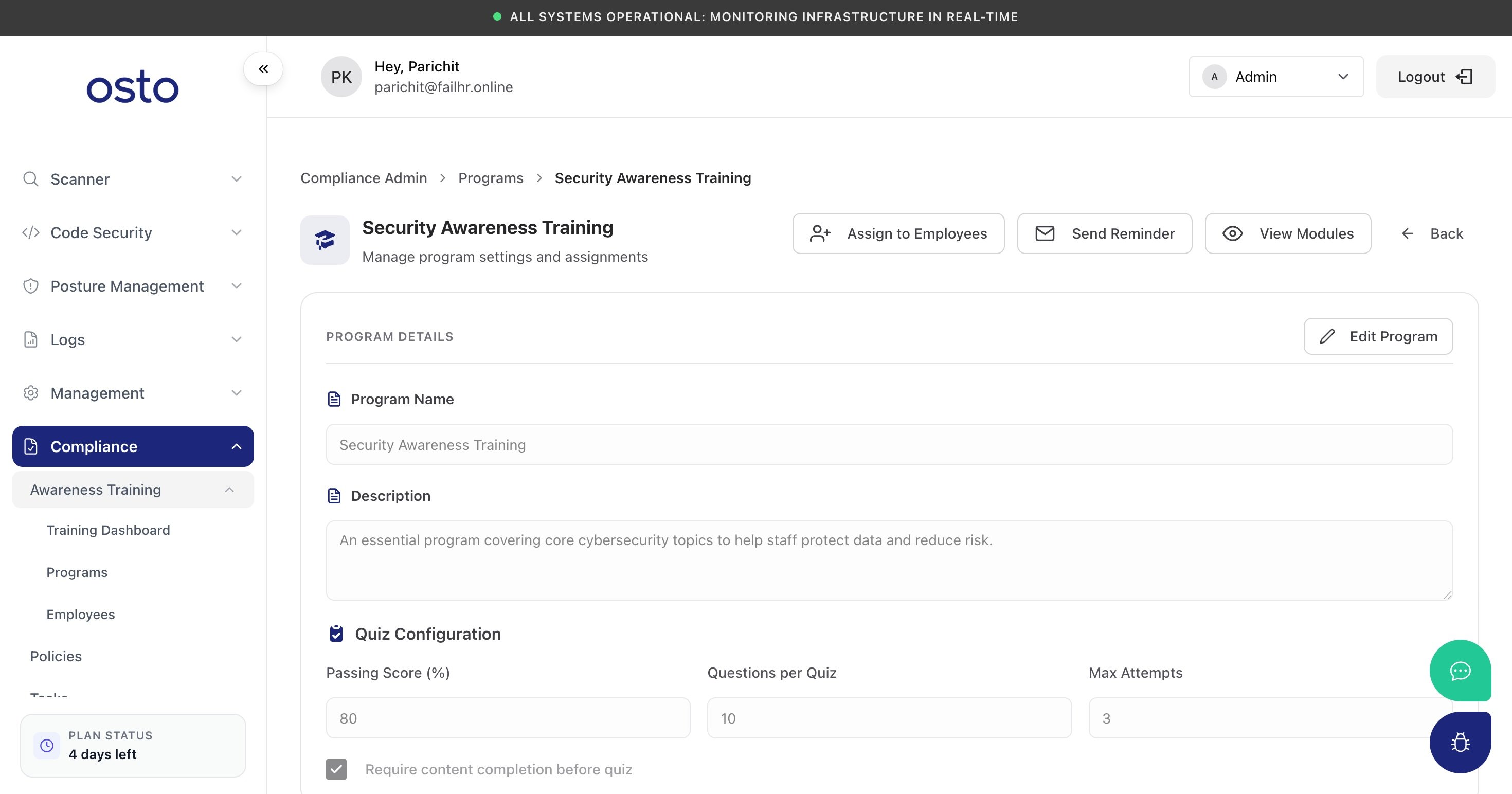 * **Program details** — name and description.
* **Quiz configuration** — set the **passing score**, **questions per quiz**, **max attempts**, and whether learners must finish the content before the quiz.
* **Assign to Employees** / **Send Reminder** — roll the program out and nudge people who haven't finished.
### Modules
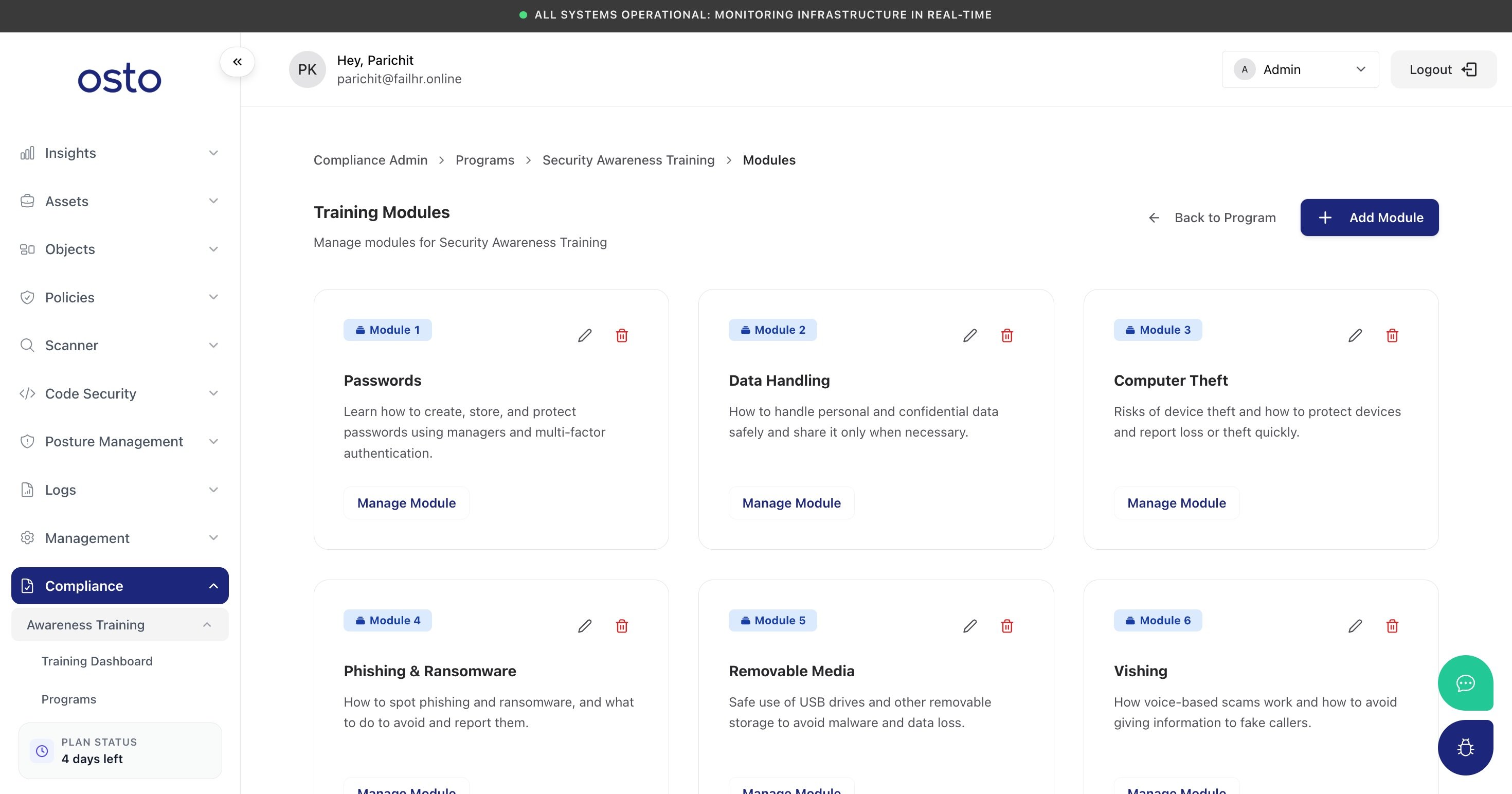
**View Modules** opens the program's lessons. The starter pack ships with eight modules — **Passwords, Data Handling, Computer Theft, Phishing & Ransomware, Removable Media, Vishing, Internet Downloads,** and **Public Wi-Fi** — and you can **Add Module** or **Manage Module** to edit each one's content items and quiz questions.
* **Program details** — name and description.
* **Quiz configuration** — set the **passing score**, **questions per quiz**, **max attempts**, and whether learners must finish the content before the quiz.
* **Assign to Employees** / **Send Reminder** — roll the program out and nudge people who haven't finished.
### Modules
**View Modules** opens the program's lessons. The starter pack ships with eight modules — **Passwords, Data Handling, Computer Theft, Phishing & Ransomware, Removable Media, Vishing, Internet Downloads,** and **Public Wi-Fi** — and you can **Add Module** or **Manage Module** to edit each one's content items and quiz questions.
 ### Employees
The **Employees** page is where you manage who is being trained. It gives you a single, roster-wide view of every employee's training status and progress, surfaces anyone who hasn't been assigned a program yet, and is the place you roll programs out and chase down completions. Use it to keep coverage at 100% and to evidence — for an audit — that your people have been trained.
### Employees
The **Employees** page is where you manage who is being trained. It gives you a single, roster-wide view of every employee's training status and progress, surfaces anyone who hasn't been assigned a program yet, and is the place you roll programs out and chase down completions. Use it to keep coverage at 100% and to evidence — for an audit — that your people have been trained.
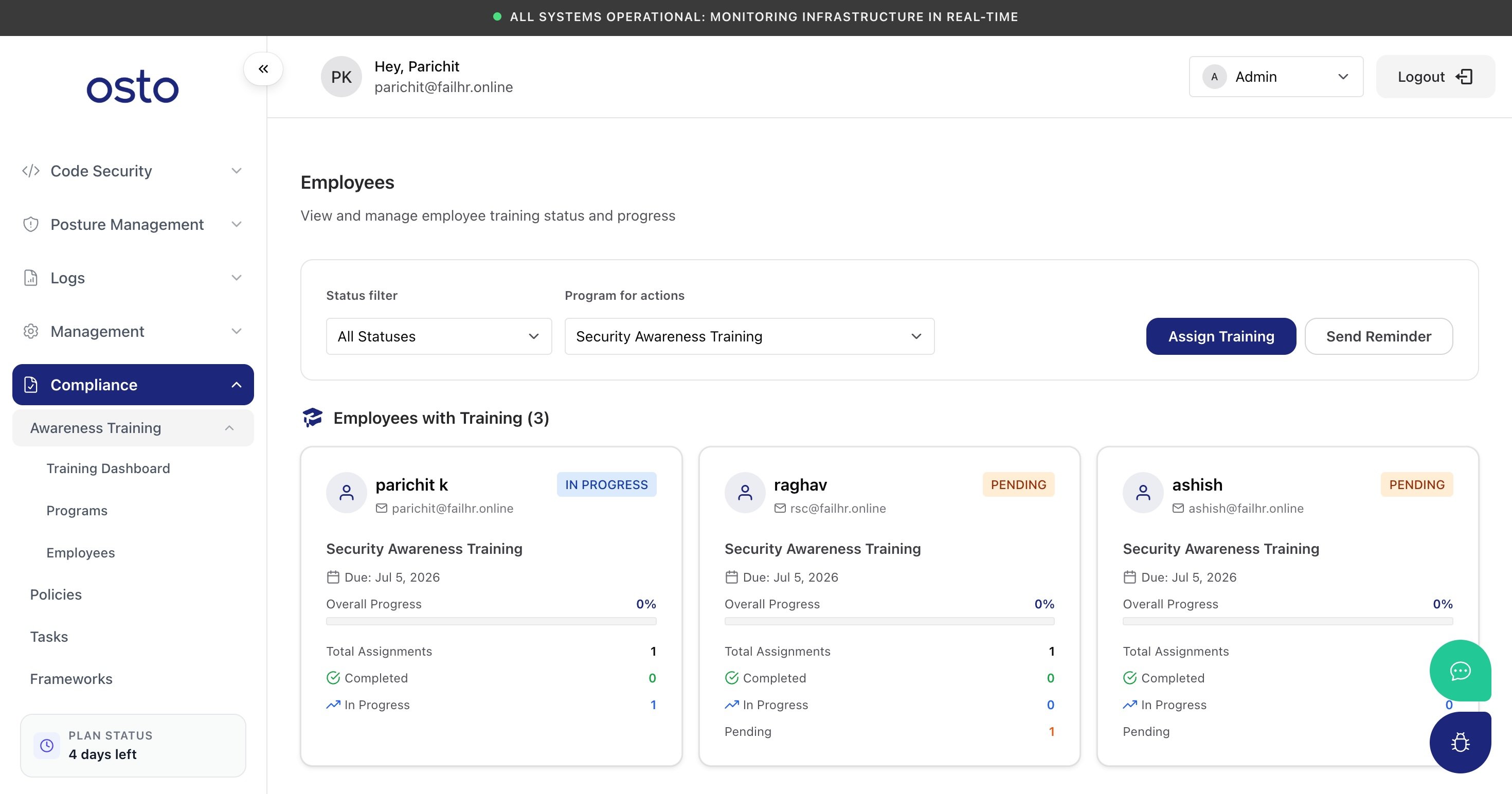 Available actions on this page:
| Action | What it does |
| ------------------------------ | -------------------------------------------------------------------------------------------------------------------------------------------------------------------- |
| **Status filter** | Narrow the roster to a single training status — **All Statuses**, **Pending**, **In Progress**, **Completed**, or **Cancelled** — to find who still needs attention. |
| **Program for actions** | Select which training program the assign and reminder actions below apply to. |
| **Assign Training** | Assign the selected program to employees, putting their assignment into a *Pending* state. |
| **Send Reminder** | Email a nudge to employees whose assigned training is still incomplete. |
| **Employees without Training** | A grouped list of anyone with no assignments yet (shown with a *No assignments* badge) so gaps in coverage are easy to spot and fix. |
## Employee experience
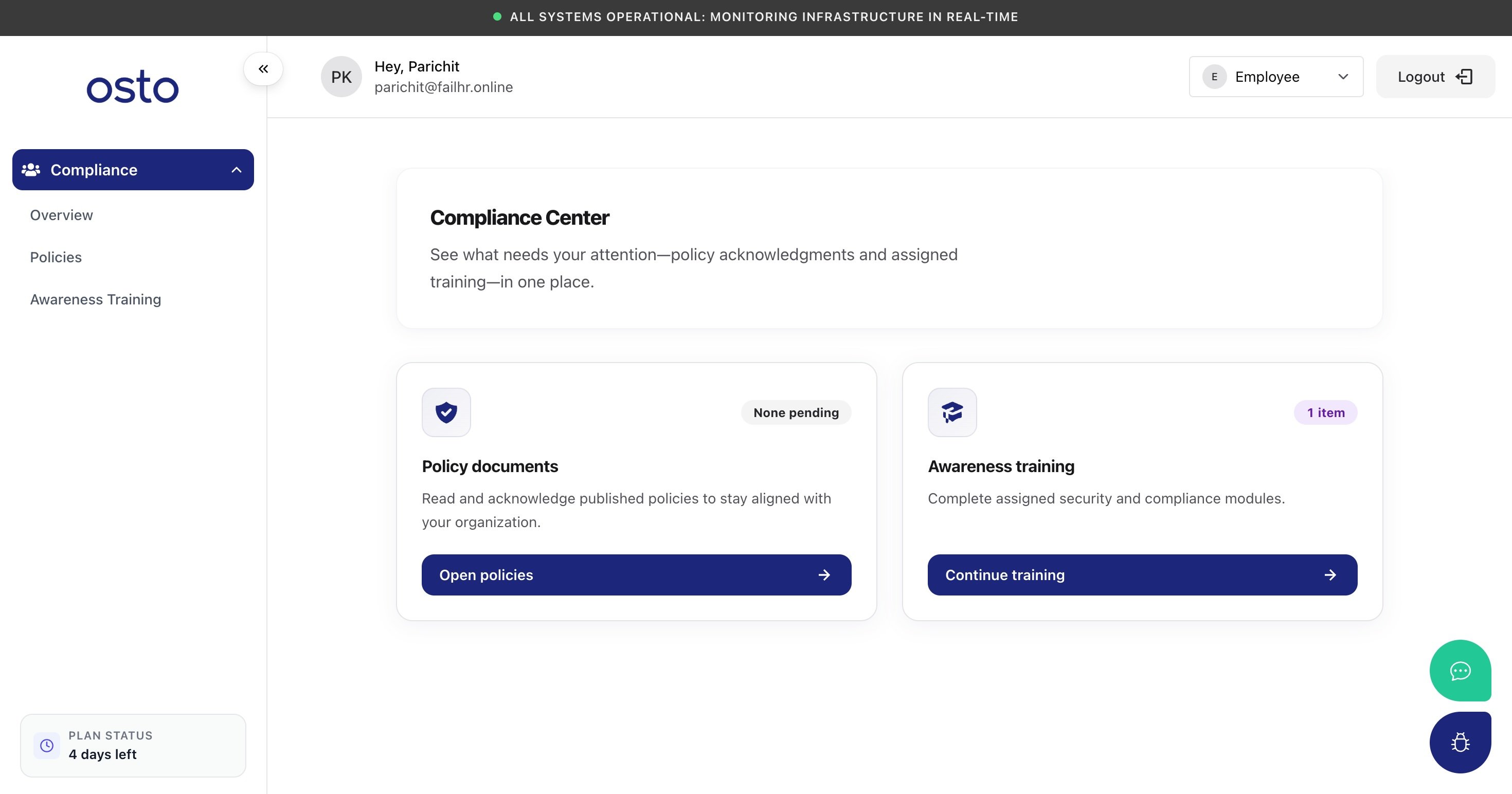
Switching the top-right role selector to **Employee** opens the **Compliance Center** — a self-service portal where employees see exactly what needs their attention: assigned training and policy acknowledgments.
Available actions on this page:
| Action | What it does |
| ------------------------------ | -------------------------------------------------------------------------------------------------------------------------------------------------------------------- |
| **Status filter** | Narrow the roster to a single training status — **All Statuses**, **Pending**, **In Progress**, **Completed**, or **Cancelled** — to find who still needs attention. |
| **Program for actions** | Select which training program the assign and reminder actions below apply to. |
| **Assign Training** | Assign the selected program to employees, putting their assignment into a *Pending* state. |
| **Send Reminder** | Email a nudge to employees whose assigned training is still incomplete. |
| **Employees without Training** | A grouped list of anyone with no assignments yet (shown with a *No assignments* badge) so gaps in coverage are easy to spot and fix. |
## Employee experience
Switching the top-right role selector to **Employee** opens the **Compliance Center** — a self-service portal where employees see exactly what needs their attention: assigned training and policy acknowledgments.
 ### Completing training
From **Awareness Training**, an employee sees each assigned program with its **progress** and **due date**, and clicks **Continue** to keep going. A program is made up of modules that **unlock in order** — you finish one before the next opens.
Inside a module, content is delivered step by step (you can't skip ahead). Steps include **reading lessons** (with key takeaways) and short **video lessons**, each with an estimated time:
### Completing training
From **Awareness Training**, an employee sees each assigned program with its **progress** and **due date**, and clicks **Continue** to keep going. A program is made up of modules that **unlock in order** — you finish one before the next opens.
Inside a module, content is delivered step by step (you can't skip ahead). Steps include **reading lessons** (with key takeaways) and short **video lessons**, each with an estimated time:
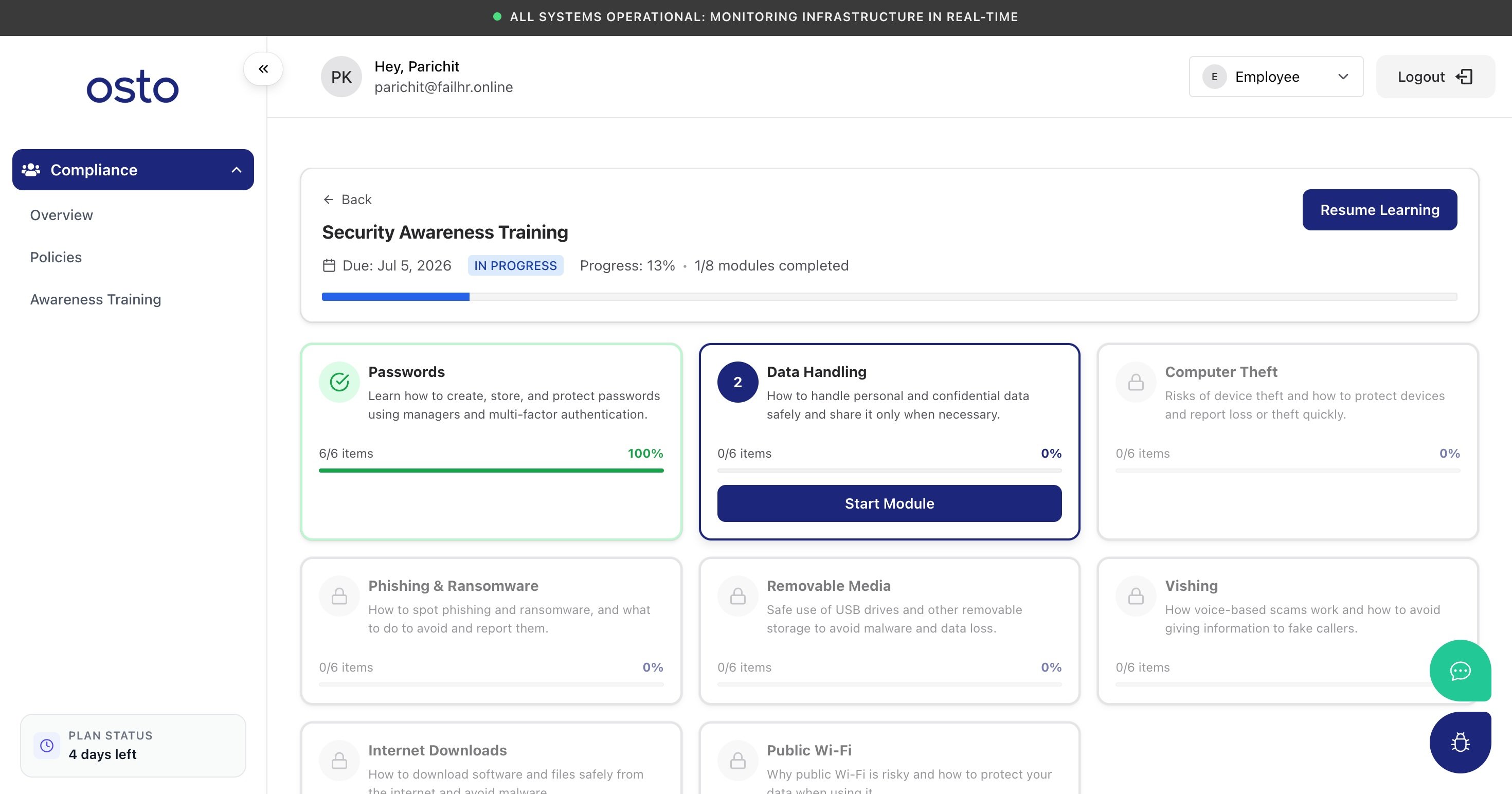 Work through the steps with **Next**, then **Complete module** on the last one. The module is marked 100%, your overall progress updates, and the next module unlocks. Programs can also require a **quiz** — with a passing score and limited attempts, as configured by your admin.
### Acknowledging policies
The **Policies** tab is where employees **read and acknowledge** the company policies their organization has published. Until policies are approved and published (from the admin **Policies** workflow), this page shows an empty state:
Work through the steps with **Next**, then **Complete module** on the last one. The module is marked 100%, your overall progress updates, and the next module unlocks. Programs can also require a **quiz** — with a passing score and limited attempts, as configured by your admin.
### Acknowledging policies
The **Policies** tab is where employees **read and acknowledge** the company policies their organization has published. Until policies are approved and published (from the admin **Policies** workflow), this page shows an empty state:
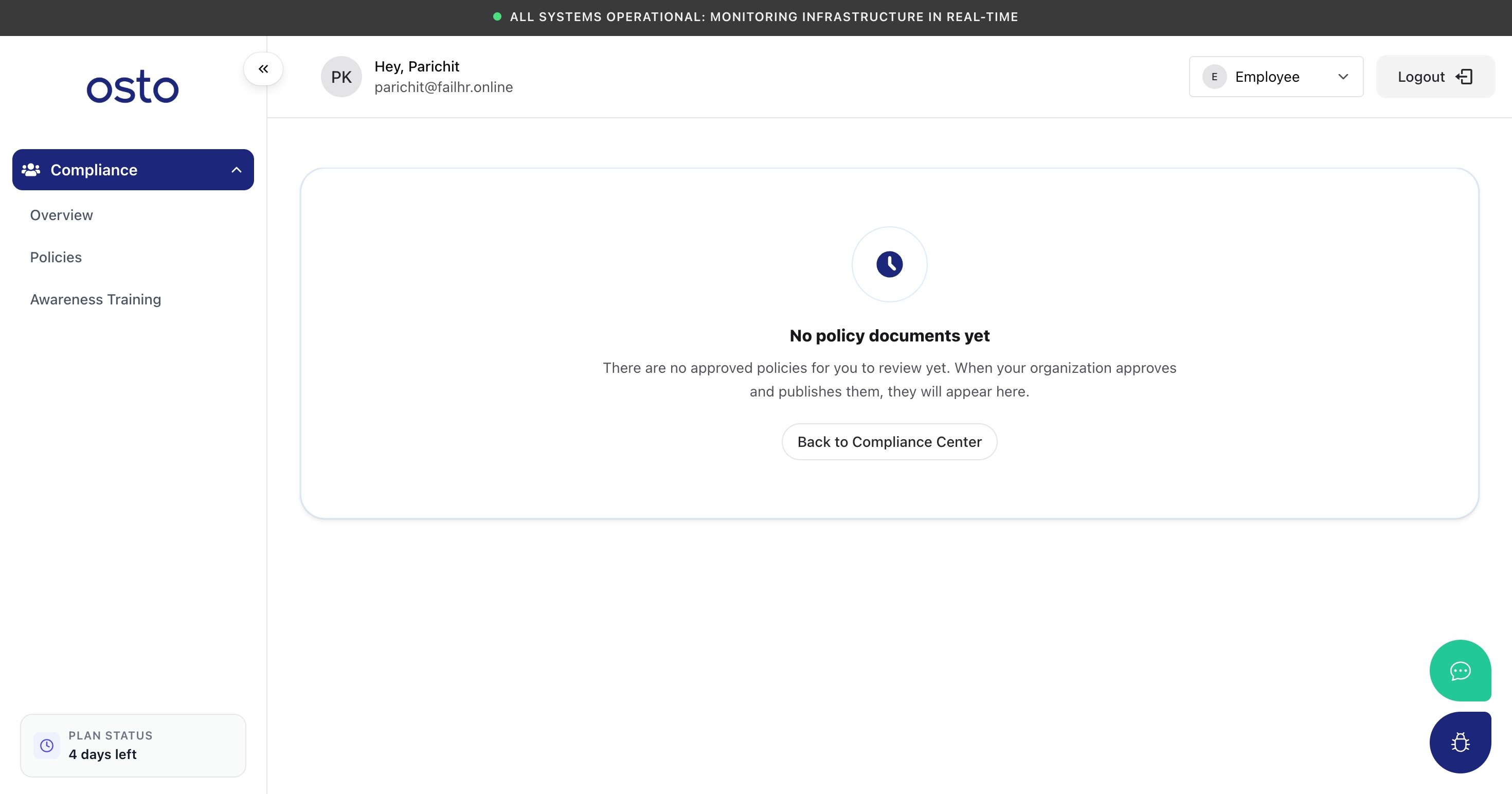 Policies only appear for employees to acknowledge once an admin has taken them through **Compliance → Policies** (set up → draft → approve → publish).