> ## Documentation Index
> Fetch the complete documentation index at: https://docs.osto.one/llms.txt
> Use this file to discover all available pages before exploring further.
# Objects Management
> Reusable building blocks — domain categories, application groups, port objects, and schedules — that you reference when defining policies.
**Objects** are the reusable building blocks you reference when writing policies. Instead of repeating the same domains, ports, or time windows in every rule, you define them once as an object and reuse them across your policies. Osto ships with a large set of predefined objects, and you can add your own.
> **Path:** Objects
Objects come in four types:
Named groups of domains used by domain-filtering policies.
Predefined application groups used by app-control policies.
Protocol/port definitions used by server-access policies.
Time-based classes that control when a policy applies.
## Domain Category
A **domain category** is a named collection of domains. Osto includes 66 **predefined** categories (Web Hosting, Web Analytics, URL Shorteners, Violence, and many more) that domain-filtering policies use to allow or block whole classes of sites at once. You can also create your own.
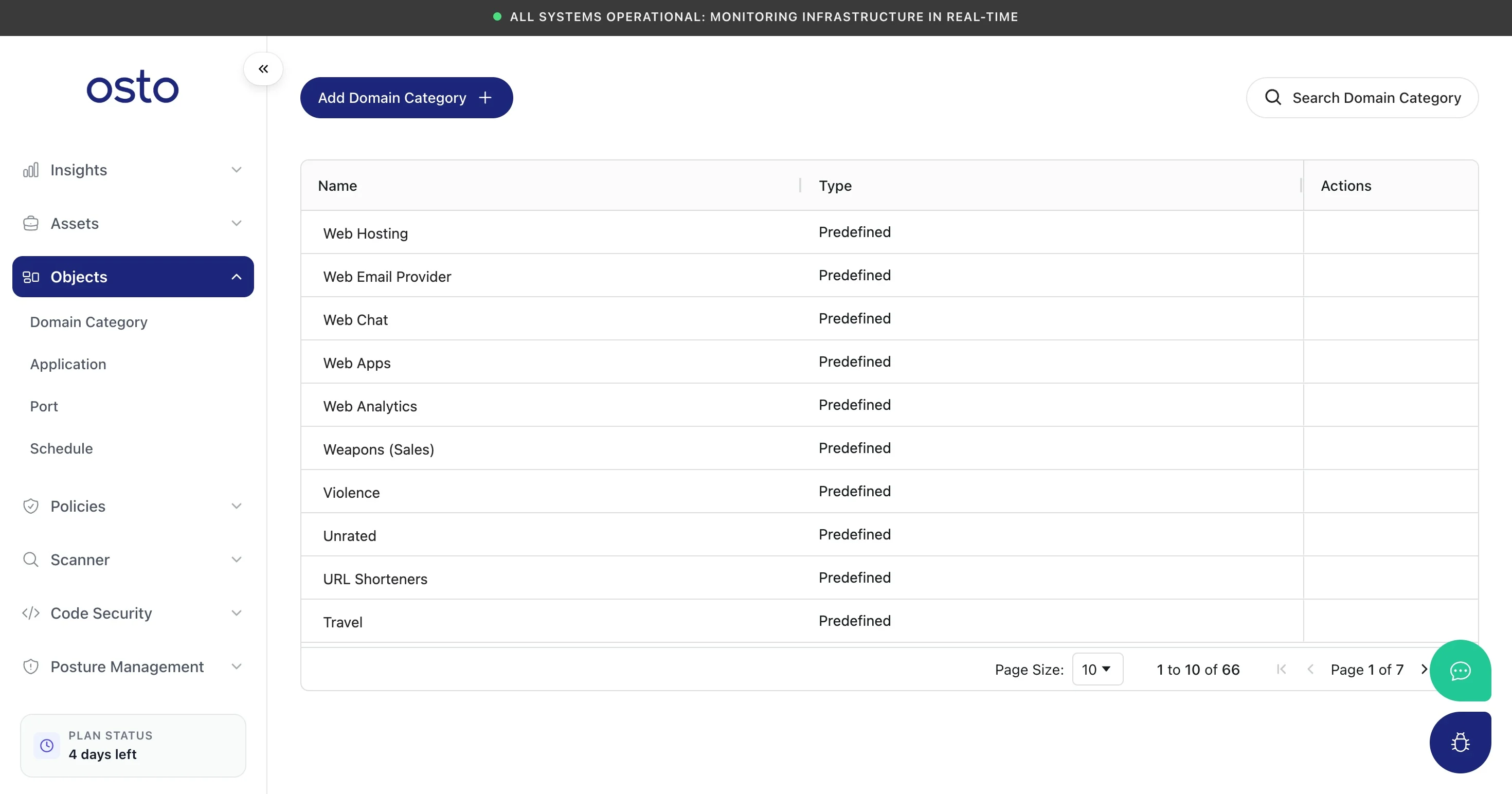 The table shows each category's **Name** and **Type** (predefined categories are read-only). Use **Search Domain Category** to find one, or **Add Domain Category** to create a custom one:
* **Name** and an optional **Description**.
* **Add Manually** — type a comma-separated list of domains; wildcards are supported (e.g. `google.com, *.facebook.com`). **Discover Related Domains** helps expand the list.
* **Import Domains** — upload a `.txt` file of domains (a sample file is available to download).
## Application
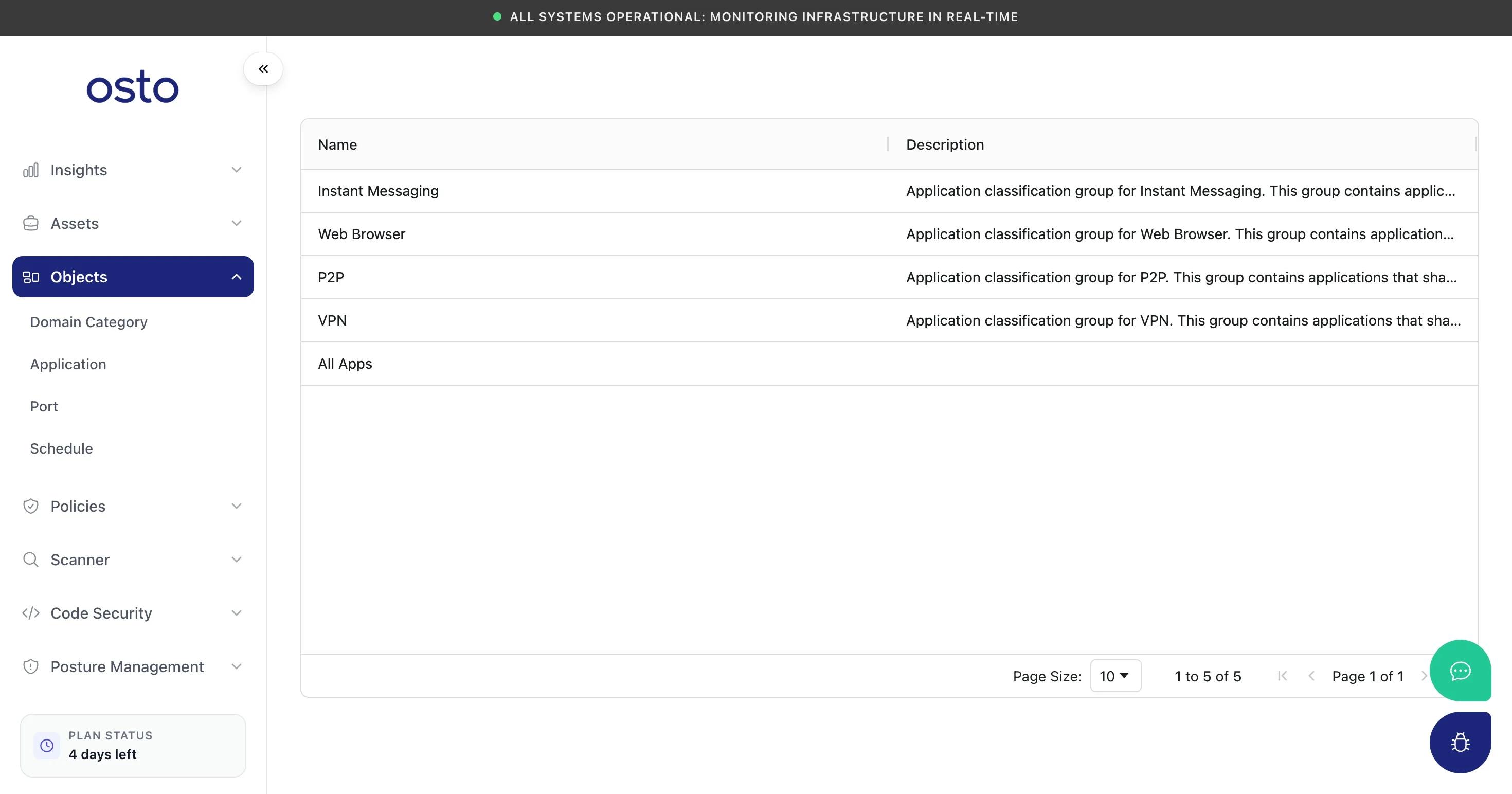
The **Application** page lists Osto's predefined application classification groups — **Instant Messaging, Web Browser, P2P, VPN,** and **All Apps**. These are the groups your **App Control** policy uses to allow or restrict categories of apps. The list is reference-only (you select these groups from within policies rather than editing them here).
The table shows each category's **Name** and **Type** (predefined categories are read-only). Use **Search Domain Category** to find one, or **Add Domain Category** to create a custom one:
* **Name** and an optional **Description**.
* **Add Manually** — type a comma-separated list of domains; wildcards are supported (e.g. `google.com, *.facebook.com`). **Discover Related Domains** helps expand the list.
* **Import Domains** — upload a `.txt` file of domains (a sample file is available to download).
## Application
The **Application** page lists Osto's predefined application classification groups — **Instant Messaging, Web Browser, P2P, VPN,** and **All Apps**. These are the groups your **App Control** policy uses to allow or restrict categories of apps. The list is reference-only (you select these groups from within policies rather than editing them here).
 ## Port
A **port object** names a protocol and port (or set of ports) so you can reference it in **secure-server access** policies. Osto includes common services (DNS, LDAP, SMB, SYSLOG, IKE, and more).
## Port
A **port object** names a protocol and port (or set of ports) so you can reference it in **secure-server access** policies. Osto includes common services (DNS, LDAP, SMB, SYSLOG, IKE, and more).
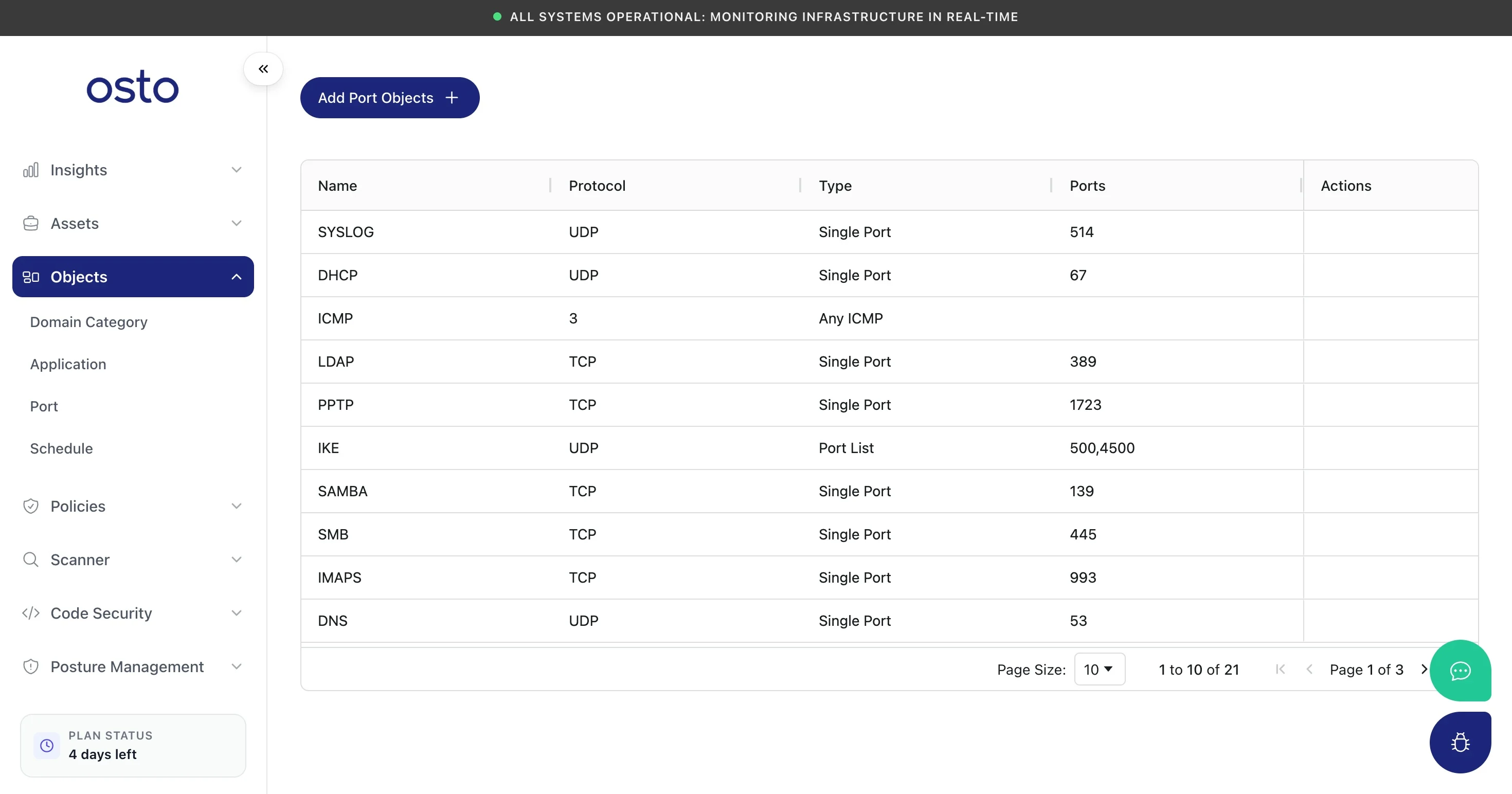 The table shows each object's **Name**, **Protocol**, **Type**, and **Ports**. To add one, click **Add Port Objects** and provide:
* **Name**.
* **Protocol** — **TCP** or **UDP**.
* **Type** — **Single Port**, **Port Range**, or **Port List** — then the matching port value(s).
## Schedule
A **schedule** controls *when* a policy is in effect. The built-in **Forever** schedule applies a policy at all times; you can add time-bound schedules for policies that should only apply during certain windows. Schedules appear as the **Schedule Class** option in endpoint policies.
The table shows each object's **Name**, **Protocol**, **Type**, and **Ports**. To add one, click **Add Port Objects** and provide:
* **Name**.
* **Protocol** — **TCP** or **UDP**.
* **Type** — **Single Port**, **Port Range**, or **Port List** — then the matching port value(s).
## Schedule
A **schedule** controls *when* a policy is in effect. The built-in **Forever** schedule applies a policy at all times; you can add time-bound schedules for policies that should only apply during certain windows. Schedules appear as the **Schedule Class** option in endpoint policies.
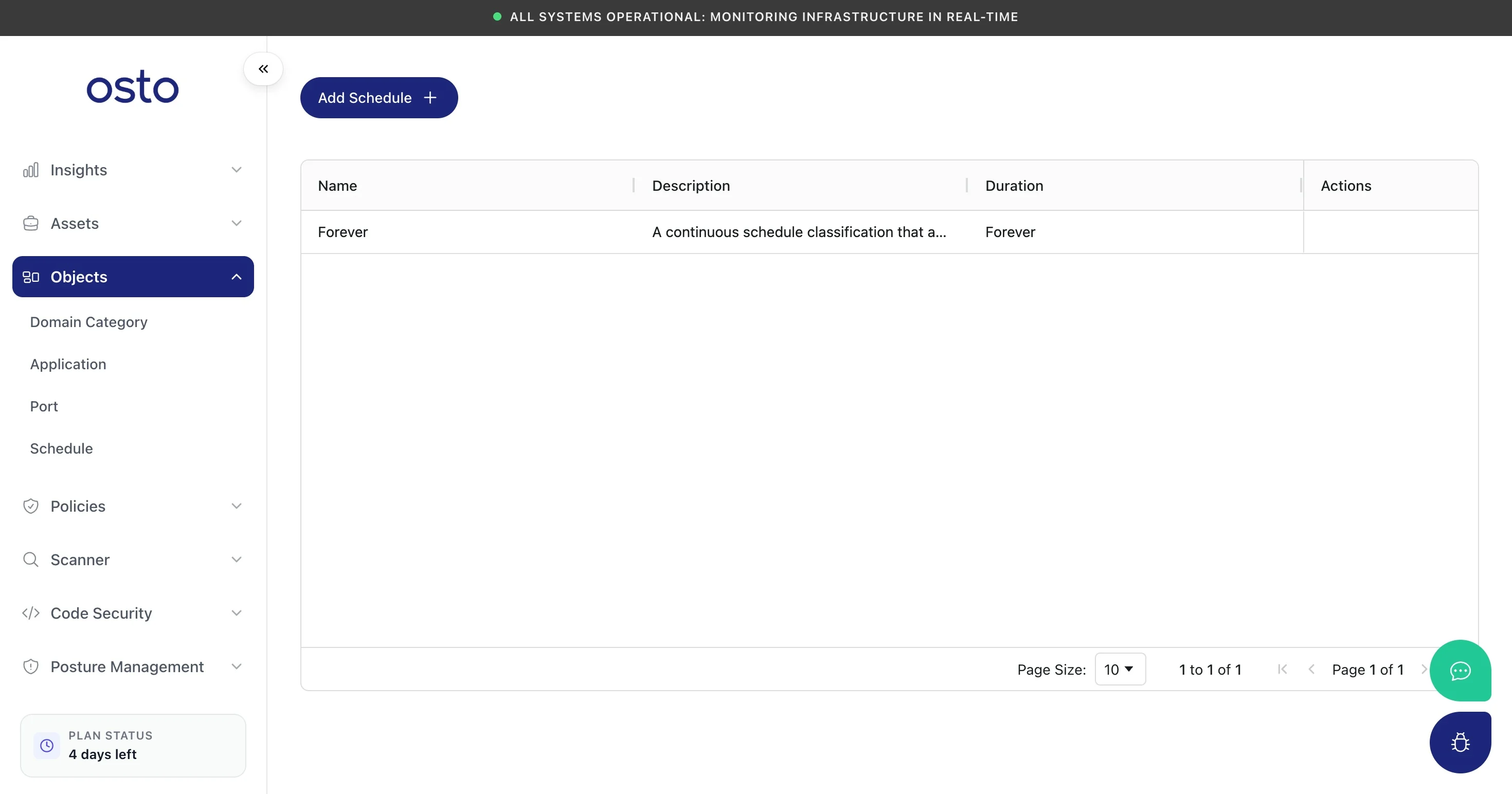 To add one, click **Add Schedule** and set a **Name**, optional **Description**, and a **Duration**:
* **Forever** — always active.
* **On Time** — active only within a date range and during specific time windows. You set a **From Date** and **To Date**, then add one or more **day + from-time/to-time** entries (use **Add Time Entry** for multiple windows).
To add one, click **Add Schedule** and set a **Name**, optional **Description**, and a **Duration**:
* **Forever** — always active.
* **On Time** — active only within a date range and during specific time windows. You set a **From Date** and **To Date**, then add one or more **day + from-time/to-time** entries (use **Add Time Entry** for multiple windows).