> ## Documentation Index
> Fetch the complete documentation index at: https://docs.osto.one/llms.txt
> Use this file to discover all available pages before exploring further.
# Connecting GCP to Osto
> Securely connect your Google Cloud Platform project to Osto for continuous cloud security posture management.
This guide will walk you through securely connecting your Google Cloud Platform (GCP) project to Osto for continuous visibility, scanning, and cloud security posture management.
**Before you begin:**
* Navigate to the [Google Cloud Console](https://console.cloud.google.com/).
* Sign in using your Google account credentials.
* You'll need to collect a few identifiers and credentials during this setup — follow the steps below carefully.
 Your **Project ID** uniquely identifies your Google Cloud project.
To find it:
1. In the Google Cloud Console, open the **Project Selector** at the top.
2. Locate the project you want to connect to Osto.
3. Copy the **Project ID** — you'll need it later for the Osto connection form.
Osto connects to GCP using a **Service Account** with read-only permissions.
To create one:
1. Navigate to **IAM & Admin → Service Accounts**.
2. Click **Create Service Account**.
3. Provide a name such as `osto-cloud-security-posture-management`.
4. Add an optional description (e.g., "Osto to monitor resources").
5. Click **Create and continue**.
Your service account must have read-only access.
To assign permissions:
1. In the role selector, search for **Viewer**.
2. Select **Viewer** (basic read-only role) and click **Continue**.
This ensures the service account can **only view resources**, not modify them.
You may optionally grant others access to the service account. If not needed, click **Done**.
To generate the credentials Osto will use:
1. Open the newly created service account.
2. Go to the **Keys** tab.
3. Click **Add key → Create new key**.
4. Choose **JSON**.
5. Click **Create**.
A JSON key file will download automatically — store it securely.
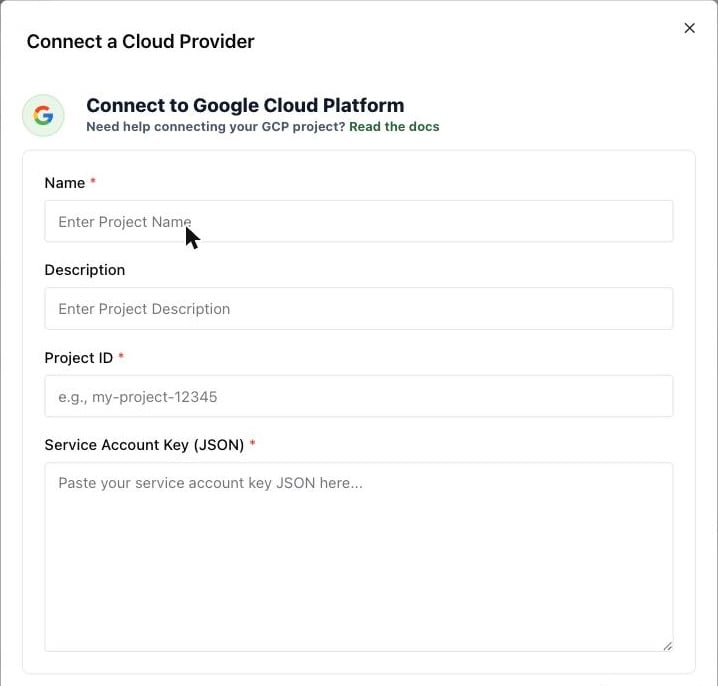
Return to your Osto platform and open the **Connect a Cloud Provider** window. Select **Google Cloud Platform (GCP)**.
Fill in the fields as follows:
* **Name:** A friendly name for your GCP connection (e.g., "Prod GCP Project").
* **Description:** Optional description for easier identification.
* **Project ID:** The Project ID you copied earlier.
* **Service Account Key (JSON):** Paste the contents of the JSON key file you downloaded earlier.
Once filled, click **Connect** to authenticate and establish the integration.
After connecting successfully:
* Your GCP assets will begin syncing automatically.
* The Osto Dashboard will display asset count and severity findings.
* The connector's status will change to **Active**.
## Summary of Required Values
| Parameter | Source | Example |
| -------------------- | ------------------------------------ | ---------------------------------------- |
| Service Account Name | IAM & Admin → Service Accounts | `osto-cloud-security-posture-management` |
| Role | Permissions Assigned During Creation | `Viewer` |
| Key Type | Keys → Create new key (JSON) | `osto-gcp-credentials.json` |
## Troubleshooting
Ensure that the JSON key file you uploaded is valid and corresponds to the correct service account.
Verify that the service account has the **Viewer** role.
Generate a new JSON key in the GCP Console and update it in Osto.
Confirm your GCP project allows API access and that no firewall rules are blocking outbound requests.
Your **Project ID** uniquely identifies your Google Cloud project.
To find it:
1. In the Google Cloud Console, open the **Project Selector** at the top.
2. Locate the project you want to connect to Osto.
3. Copy the **Project ID** — you'll need it later for the Osto connection form.
Osto connects to GCP using a **Service Account** with read-only permissions.
To create one:
1. Navigate to **IAM & Admin → Service Accounts**.
2. Click **Create Service Account**.
3. Provide a name such as `osto-cloud-security-posture-management`.
4. Add an optional description (e.g., "Osto to monitor resources").
5. Click **Create and continue**.
Your service account must have read-only access.
To assign permissions:
1. In the role selector, search for **Viewer**.
2. Select **Viewer** (basic read-only role) and click **Continue**.
This ensures the service account can **only view resources**, not modify them.
You may optionally grant others access to the service account. If not needed, click **Done**.
To generate the credentials Osto will use:
1. Open the newly created service account.
2. Go to the **Keys** tab.
3. Click **Add key → Create new key**.
4. Choose **JSON**.
5. Click **Create**.
A JSON key file will download automatically — store it securely.
Return to your Osto platform and open the **Connect a Cloud Provider** window. Select **Google Cloud Platform (GCP)**.
Fill in the fields as follows:
* **Name:** A friendly name for your GCP connection (e.g., "Prod GCP Project").
* **Description:** Optional description for easier identification.
* **Project ID:** The Project ID you copied earlier.
* **Service Account Key (JSON):** Paste the contents of the JSON key file you downloaded earlier.
Once filled, click **Connect** to authenticate and establish the integration.
After connecting successfully:
* Your GCP assets will begin syncing automatically.
* The Osto Dashboard will display asset count and severity findings.
* The connector's status will change to **Active**.
## Summary of Required Values
| Parameter | Source | Example |
| -------------------- | ------------------------------------ | ---------------------------------------- |
| Service Account Name | IAM & Admin → Service Accounts | `osto-cloud-security-posture-management` |
| Role | Permissions Assigned During Creation | `Viewer` |
| Key Type | Keys → Create new key (JSON) | `osto-gcp-credentials.json` |
## Troubleshooting
Ensure that the JSON key file you uploaded is valid and corresponds to the correct service account.
Verify that the service account has the **Viewer** role.
Generate a new JSON key in the GCP Console and update it in Osto.
Confirm your GCP project allows API access and that no firewall rules are blocking outbound requests.