> ## Documentation Index
> Fetch the complete documentation index at: https://docs.osto.one/llms.txt
> Use this file to discover all available pages before exploring further.
# App Scanner
> Upload an Android or iOS app package to scan it for vulnerabilities, privacy risks, and hardcoded secrets.
The **App Scanner** analyzes your mobile application builds for security and privacy issues. Upload an app package and Osto inspects it, then reports vulnerabilities, high-severity findings, privacy risks, and hardcoded secrets.
> **Path:** Scanner → App Scanner
 ## Upload an app
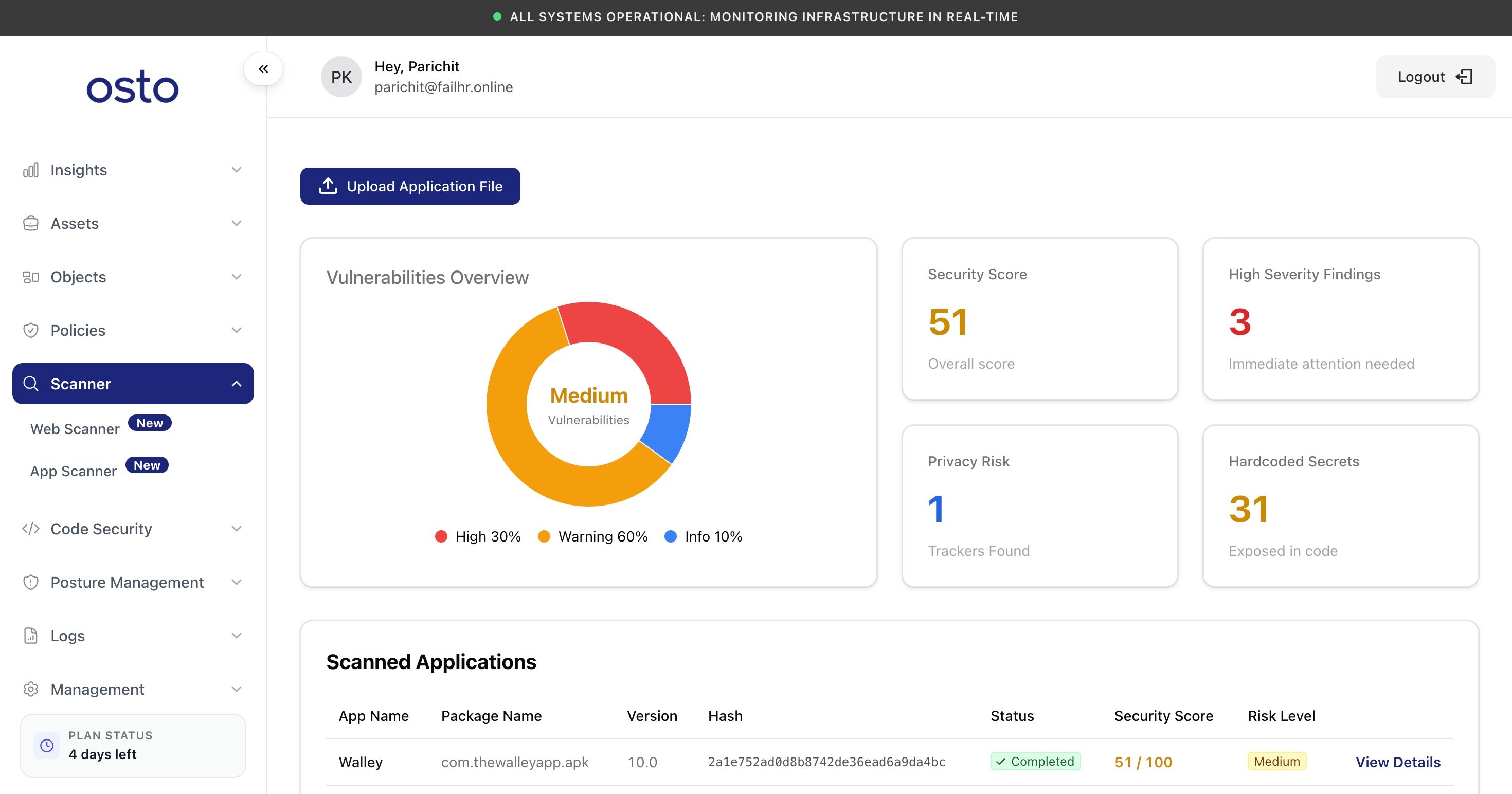
Click **Upload Application File** (top-left) to open the upload panel, then drag in your file or click to browse.
## Upload an app
Click **Upload Application File** (top-left) to open the upload panel, then drag in your file or click to browse.
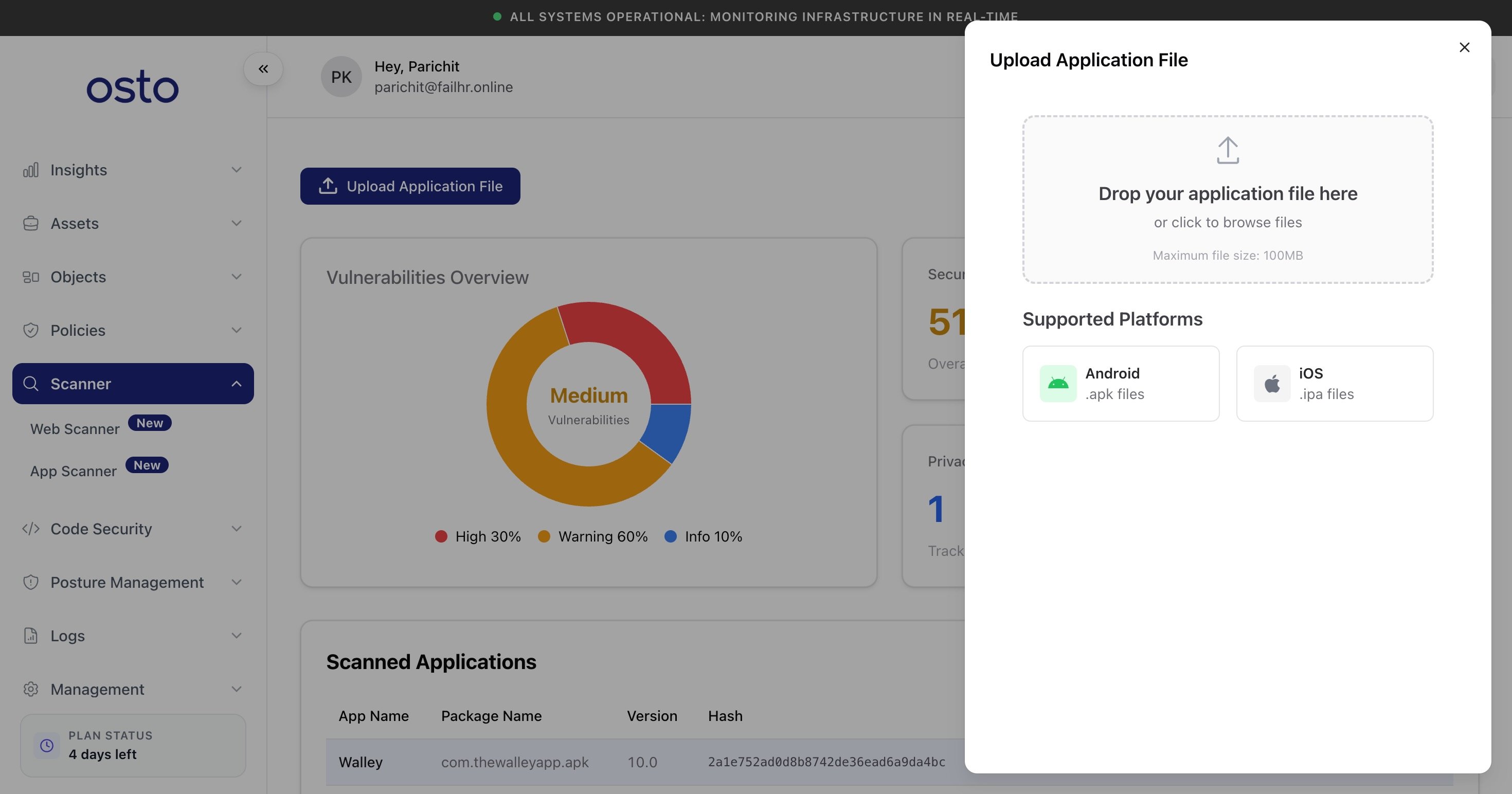 **Supported platforms and formats:**
| Platform | File type |
| ----------- | ------------ |
| **Android** | `.apk` files |
| **iOS** | `.ipa` files |
The maximum file size is **100 MB**.
Uploading a build only submits it for analysis. Osto never publishes, distributes, or modifies your app.
## Vulnerabilities Overview
Once you've uploaded an app, the **Vulnerabilities Overview** summarizes what the scan found — a donut chart breaks the findings down by severity (High / Warning / Info) with an overall risk rating in the center. Until your first scan completes it shows *"No scans yet — Upload an app to see vulnerability analysis."*
Alongside it, four metric cards give you a quick read on the app's posture:
| Metric | What it measures |
| -------------------------- | -------------------------------------------------------- |
| **Security Score** | The app's overall security rating (the *Overall score*). |
| **High Severity Findings** | The count of issues needing immediate attention. |
| **Privacy Risk** | The number of trackers found in the app. |
| **Hardcoded Secrets** | Credentials, keys, or tokens exposed in the code. |
## Scanned Applications
The **Scanned Applications** table lists every app you've submitted, so you can revisit past results and compare builds over time. Each row shows:
| Column | Description |
| ------------------ | ----------------------------------------------- |
| **App Name** | The application's name. |
| **Package Name** | The package identifier of the uploaded build. |
| **Version** | The app version. |
| **Hash** | A fingerprint of the uploaded file. |
| **Status** | The scan status (for example, *Completed*). |
| **Security Score** | The score out of 100. |
| **Risk Level** | An overall rating such as Low, Medium, or High. |
Before your first upload it shows *"No scanned applications yet — Upload your first application to start security scanning."* Select **View Details** on any row to open its full report.
## The app report
Opening **View Details** shows the complete analysis for that build.
**Supported platforms and formats:**
| Platform | File type |
| ----------- | ------------ |
| **Android** | `.apk` files |
| **iOS** | `.ipa` files |
The maximum file size is **100 MB**.
Uploading a build only submits it for analysis. Osto never publishes, distributes, or modifies your app.
## Vulnerabilities Overview
Once you've uploaded an app, the **Vulnerabilities Overview** summarizes what the scan found — a donut chart breaks the findings down by severity (High / Warning / Info) with an overall risk rating in the center. Until your first scan completes it shows *"No scans yet — Upload an app to see vulnerability analysis."*
Alongside it, four metric cards give you a quick read on the app's posture:
| Metric | What it measures |
| -------------------------- | -------------------------------------------------------- |
| **Security Score** | The app's overall security rating (the *Overall score*). |
| **High Severity Findings** | The count of issues needing immediate attention. |
| **Privacy Risk** | The number of trackers found in the app. |
| **Hardcoded Secrets** | Credentials, keys, or tokens exposed in the code. |
## Scanned Applications
The **Scanned Applications** table lists every app you've submitted, so you can revisit past results and compare builds over time. Each row shows:
| Column | Description |
| ------------------ | ----------------------------------------------- |
| **App Name** | The application's name. |
| **Package Name** | The package identifier of the uploaded build. |
| **Version** | The app version. |
| **Hash** | A fingerprint of the uploaded file. |
| **Status** | The scan status (for example, *Completed*). |
| **Security Score** | The score out of 100. |
| **Risk Level** | An overall rating such as Low, Medium, or High. |
Before your first upload it shows *"No scanned applications yet — Upload your first application to start security scanning."* Select **View Details** on any row to open its full report.
## The app report
Opening **View Details** shows the complete analysis for that build.
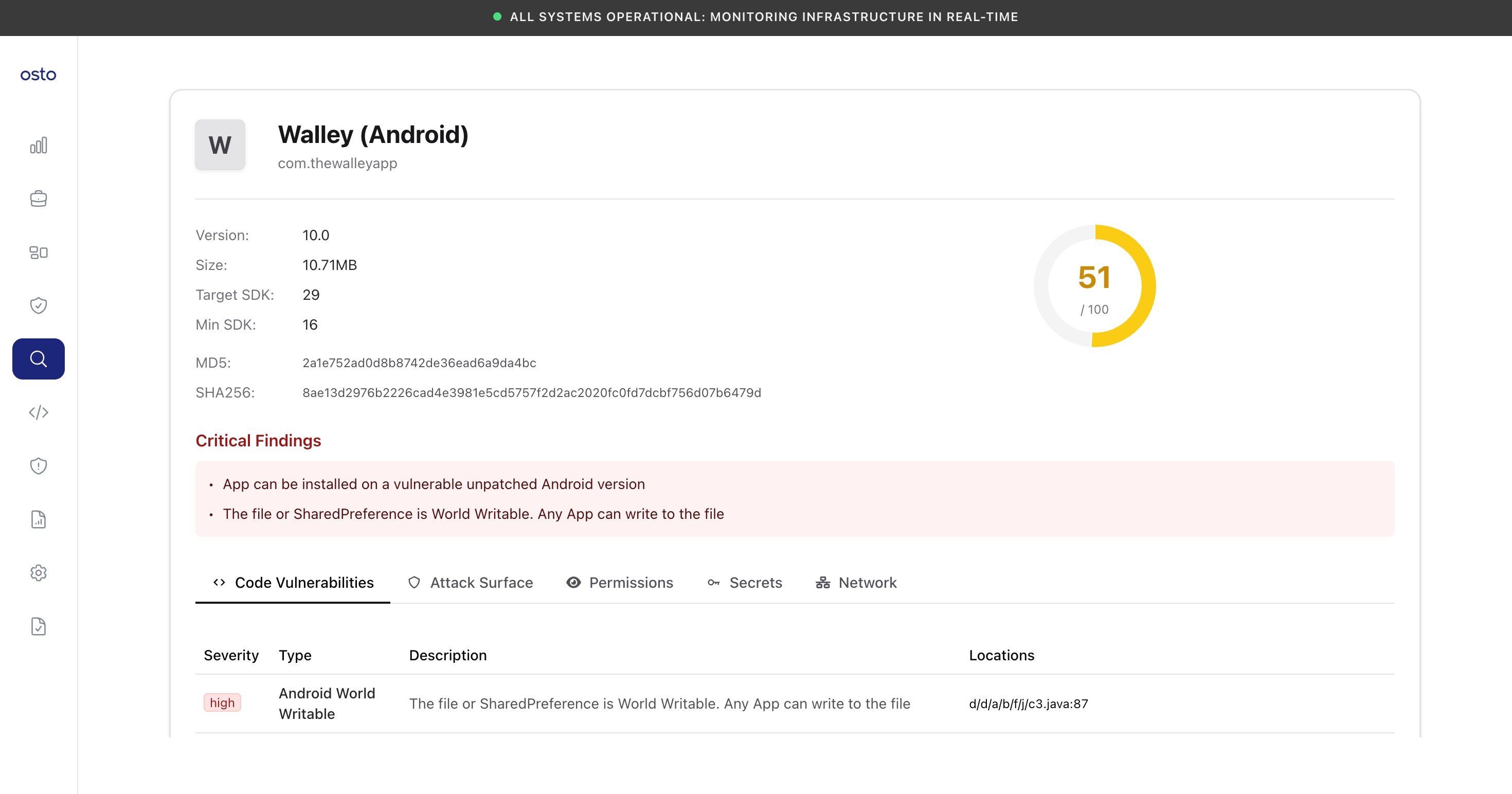 At the top you'll find the app's **metadata** — version, size, target and minimum SDK, and file hashes (MD5 and SHA-256) — next to its score out of 100. A **Critical Findings** panel highlights the most serious issues first.
The report then organizes everything into five tabs:
| Tab | What it covers |
| ------------------------ | ----------------------------------------------------------------------------------------------------------------------------------------- |
| **Code Vulnerabilities** | Issues found in the app's code, each with a severity, type, description, and the exact file locations. |
| **Attack Surface** | Exposed components — activities, services, and broadcast receivers — and configuration weaknesses that widen the app's attack surface. |
| **Permissions** | Every permission the app requests, with a description and a protection level (such as *normal* or *dangerous*). |
| **Secrets** | Hardcoded keys, tokens, and other secrets discovered in the code. |
| **Network** | Trackers bundled in the app, Firebase endpoints and their configuration, and URLs embedded in the code (with the file each was found in). |
## After a scan
When analysis completes, the Vulnerabilities Overview and the four metric cards populate with results, and the app appears in the Scanned Applications list. Upload a new build whenever you want to re-check an app after addressing its findings.
At the top you'll find the app's **metadata** — version, size, target and minimum SDK, and file hashes (MD5 and SHA-256) — next to its score out of 100. A **Critical Findings** panel highlights the most serious issues first.
The report then organizes everything into five tabs:
| Tab | What it covers |
| ------------------------ | ----------------------------------------------------------------------------------------------------------------------------------------- |
| **Code Vulnerabilities** | Issues found in the app's code, each with a severity, type, description, and the exact file locations. |
| **Attack Surface** | Exposed components — activities, services, and broadcast receivers — and configuration weaknesses that widen the app's attack surface. |
| **Permissions** | Every permission the app requests, with a description and a protection level (such as *normal* or *dangerous*). |
| **Secrets** | Hardcoded keys, tokens, and other secrets discovered in the code. |
| **Network** | Trackers bundled in the app, Firebase endpoints and their configuration, and URLs embedded in the code (with the file each was found in). |
## After a scan
When analysis completes, the Vulnerabilities Overview and the four metric cards populate with results, and the app appears in the Scanned Applications list. Upload a new build whenever you want to re-check an app after addressing its findings.