> ## Documentation Index
> Fetch the complete documentation index at: https://docs.osto.one/llms.txt
> Use this file to discover all available pages before exploring further.
# Web Scanner
> Scan your registered domains for web vulnerabilities, track a security score, and generate scheduled security reports.
The **Web Scanner** tests the websites you manage in Osto for security vulnerabilities. It scans your live domains, scores their security posture, and highlights the issues and attack paths most worth your attention.
> **Path:** Scanner → Web Scanner
 ## Run a scan
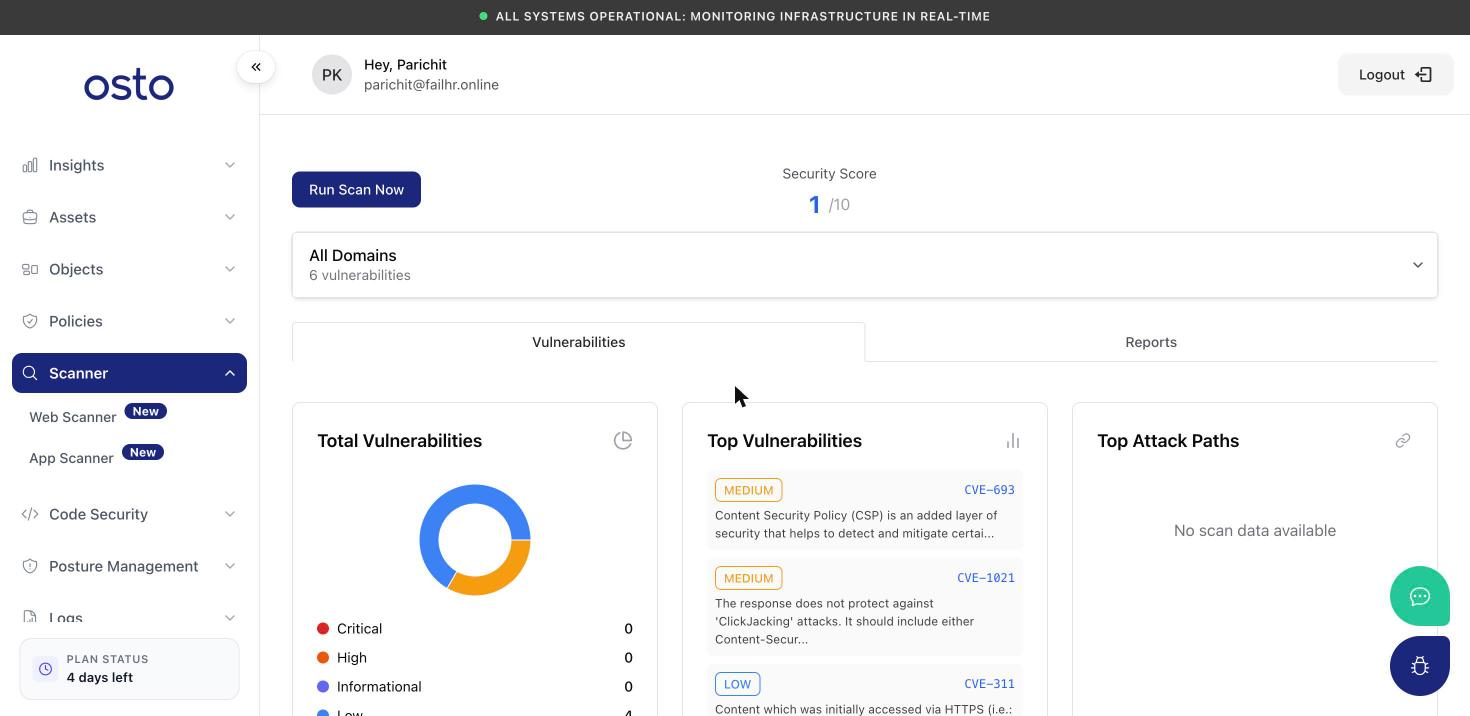
Click **Run Scan Now** (top-left) to start a scan immediately — there's no extra setup or dialog. A confirmation banner appears: *"Scan started — We have started your scan. Results will appear shortly."*
The scan runs in the background against the domain currently selected in the domain dropdown (or across **all domains** if that's selected). Results populate the page automatically once the scan completes.
The scanner only assesses your sites — it never modifies them. You can run a scan as often as you need.
## Choosing what to scan
The domain selector below the score lets you focus on a single site or view everything together:
* **All Domains** — the aggregated view across every domain you've registered, with a combined vulnerability count.
* **Individual domain** — each registered domain is listed with its own vulnerability count and scan status (for example, *"Not scanned"* until its first scan completes).
Domains come from your **Manage Domains** list under Assets, so any site you add there becomes available to scan here.
## Security Score
At the top of the page, Osto shows a **Security Score** out of 10 with a plain-language rating beneath it (such as *High Security*). The score reflects the results of your most recent scan for the selected scope, giving you an at-a-glance sense of where a site stands.
## Vulnerabilities tab
The **Vulnerabilities** tab is your results dashboard, organized into three summary views plus a detailed findings table:
| View | What it shows |
| ------------------------- | ------------------------------------------------------------------------------------------------------------------------------------------- |
| **Total Vulnerabilities** | A donut chart with the count of findings by severity — **Critical**, **High**, **Medium**, **Low**, and **Informational** — plus the total. |
| **Top Vulnerabilities** | The most significant findings, each shown with its severity, identifier, and a short description. |
| **Top Attack Paths** | The routes an attacker could chain together to reach sensitive areas. |
Before your first scan returns data, each view shows *"No scan data found yet."*
### All Vulnerabilities table
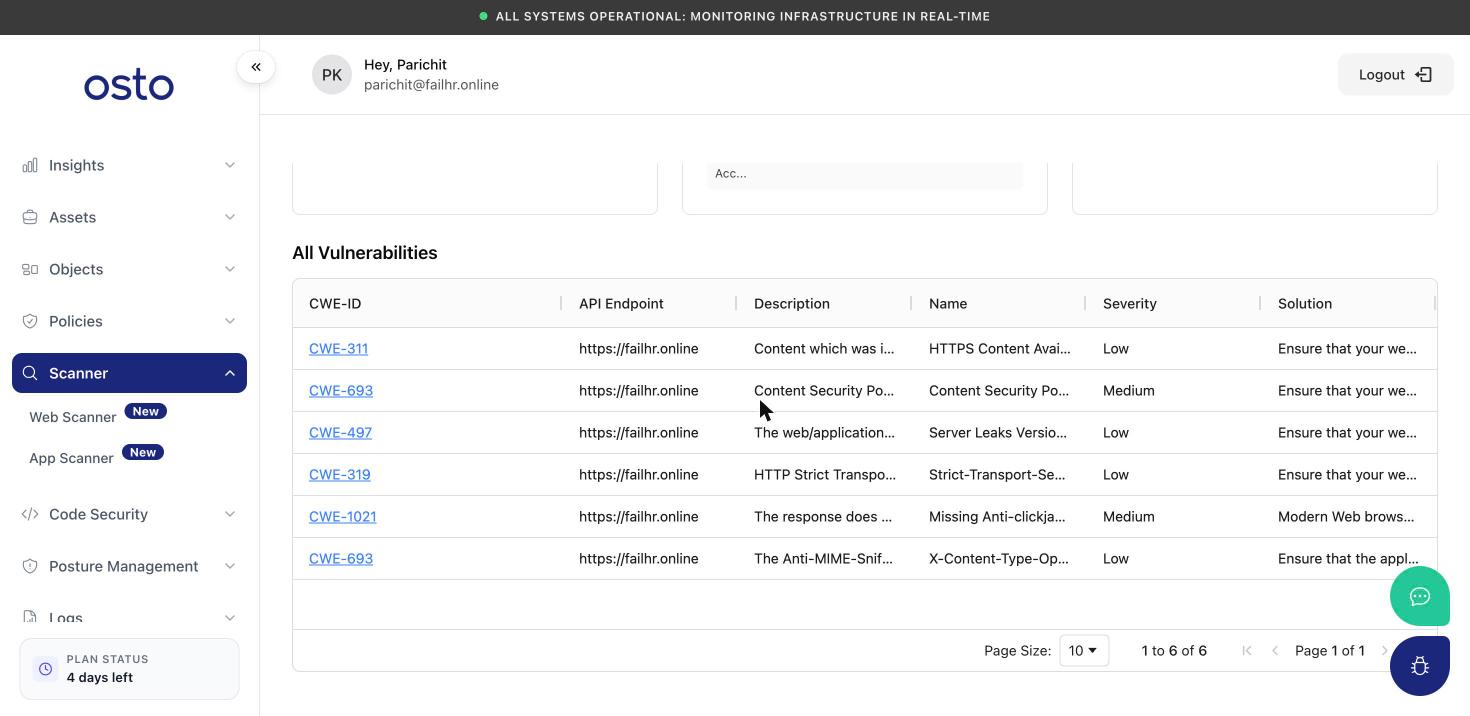
Below the summary views, the **All Vulnerabilities** table lists every finding from the scan:
| Column | Description |
| ---------------- | ------------------------------------------------------ |
| **CWE-ID** | The weakness identifier (links to a full detail view). |
| **API Endpoint** | The address that was tested. |
| **Description** | What the issue is. |
| **Name** | A short title for the finding. |
| **Severity** | Critical, High, Medium, Low, or Informational. |
| **Solution** | Recommended remediation. |
The table is paginated, with a selectable page size.
## Run a scan
Click **Run Scan Now** (top-left) to start a scan immediately — there's no extra setup or dialog. A confirmation banner appears: *"Scan started — We have started your scan. Results will appear shortly."*
The scan runs in the background against the domain currently selected in the domain dropdown (or across **all domains** if that's selected). Results populate the page automatically once the scan completes.
The scanner only assesses your sites — it never modifies them. You can run a scan as often as you need.
## Choosing what to scan
The domain selector below the score lets you focus on a single site or view everything together:
* **All Domains** — the aggregated view across every domain you've registered, with a combined vulnerability count.
* **Individual domain** — each registered domain is listed with its own vulnerability count and scan status (for example, *"Not scanned"* until its first scan completes).
Domains come from your **Manage Domains** list under Assets, so any site you add there becomes available to scan here.
## Security Score
At the top of the page, Osto shows a **Security Score** out of 10 with a plain-language rating beneath it (such as *High Security*). The score reflects the results of your most recent scan for the selected scope, giving you an at-a-glance sense of where a site stands.
## Vulnerabilities tab
The **Vulnerabilities** tab is your results dashboard, organized into three summary views plus a detailed findings table:
| View | What it shows |
| ------------------------- | ------------------------------------------------------------------------------------------------------------------------------------------- |
| **Total Vulnerabilities** | A donut chart with the count of findings by severity — **Critical**, **High**, **Medium**, **Low**, and **Informational** — plus the total. |
| **Top Vulnerabilities** | The most significant findings, each shown with its severity, identifier, and a short description. |
| **Top Attack Paths** | The routes an attacker could chain together to reach sensitive areas. |
Before your first scan returns data, each view shows *"No scan data found yet."*
### All Vulnerabilities table
Below the summary views, the **All Vulnerabilities** table lists every finding from the scan:
| Column | Description |
| ---------------- | ------------------------------------------------------ |
| **CWE-ID** | The weakness identifier (links to a full detail view). |
| **API Endpoint** | The address that was tested. |
| **Description** | What the issue is. |
| **Name** | A short title for the finding. |
| **Severity** | Critical, High, Medium, Low, or Informational. |
| **Solution** | Recommended remediation. |
The table is paginated, with a selectable page size.
 ### Finding details
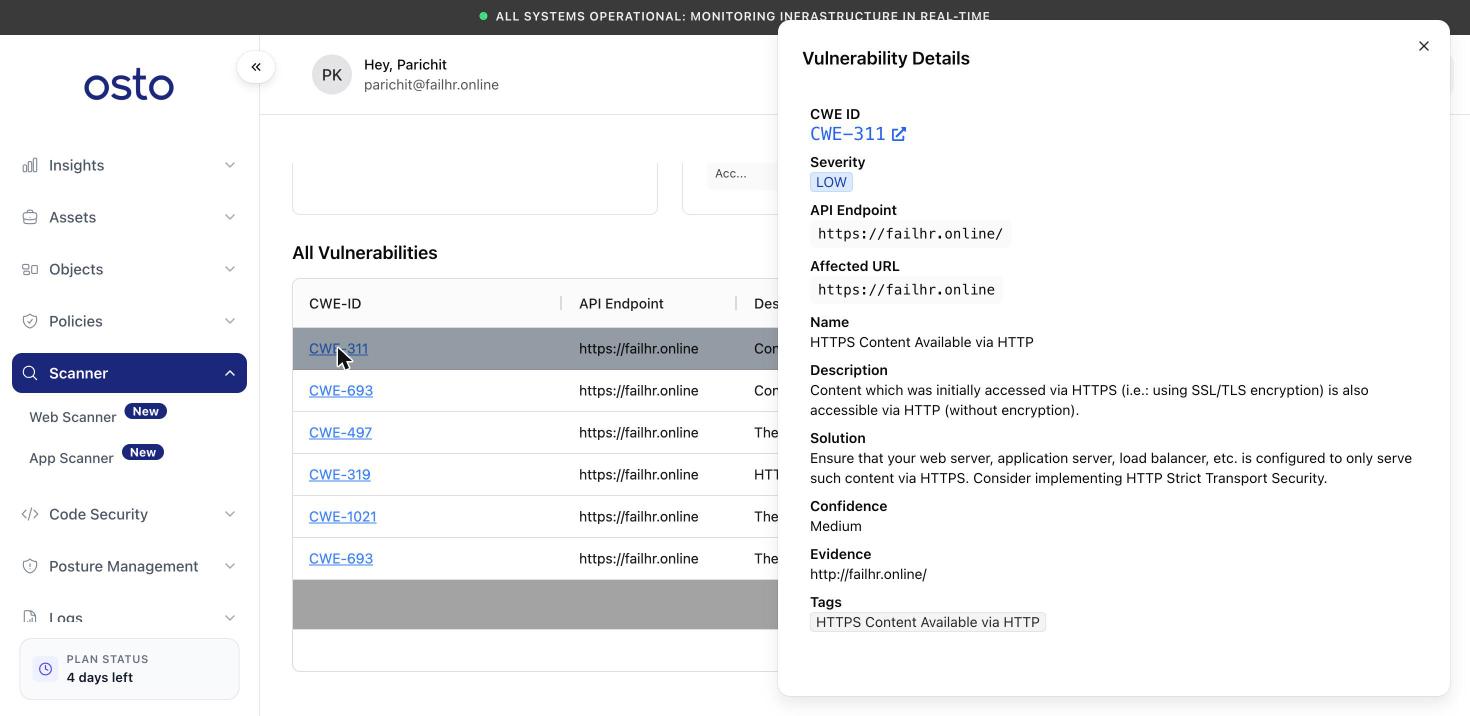
Click any finding's identifier to open a **Vulnerability Details** panel with the complete write-up: severity, the affected endpoint and URL, a full description and recommended solution, the scanner's confidence level, the supporting evidence, and tags. The identifier also links out to the public reference for that weakness.
### Finding details
Click any finding's identifier to open a **Vulnerability Details** panel with the complete write-up: severity, the affected endpoint and URL, a full description and recommended solution, the scanner's confidence level, the supporting evidence, and tags. The identifier also links out to the public reference for that weakness.
 ## Reports tab
The **Reports** tab keeps your generated security reports and explains the delivery cadences:
* **Security Reports** — the list of reports Osto has generated. It's empty until your first report is produced.
* **Reports Schedule** — describes how often reports are delivered:
* **Daily Reports** — delivered within 24 hours of the selected daily schedule.
* **Weekly Reports** — delivered within 7 days of the selected weekly schedule.
* **Monthly Reports** — delivered within 30 days of the selected monthly schedule.
## After a scan
Once a scan finishes, the Security Score, the three Vulnerabilities views, and the results panel update with your findings, and reports become available under the Reports tab. Re-run a scan any time to refresh the picture after you've shipped fixes.
## Reports tab
The **Reports** tab keeps your generated security reports and explains the delivery cadences:
* **Security Reports** — the list of reports Osto has generated. It's empty until your first report is produced.
* **Reports Schedule** — describes how often reports are delivered:
* **Daily Reports** — delivered within 24 hours of the selected daily schedule.
* **Weekly Reports** — delivered within 7 days of the selected weekly schedule.
* **Monthly Reports** — delivered within 30 days of the selected monthly schedule.
## After a scan
Once a scan finishes, the Security Score, the three Vulnerabilities views, and the results panel update with your findings, and reports become available under the Reports tab. Re-run a scan any time to refresh the picture after you've shipped fixes.