

Path: Compliance → Awareness TrainingAwareness Training has two sides: the admin experience (build and assign) and the employee experience (learn and acknowledge). Use the role switcher in the top-right to move between them.
Admin experience
As an admin, you build training programs, assign them to employees, and track completion across the Training Dashboard, Programs, Modules, and Employees pages.Training Dashboard
The Training Dashboard is your command center. Once programs are assigned, it shows coverage and progress at a glance: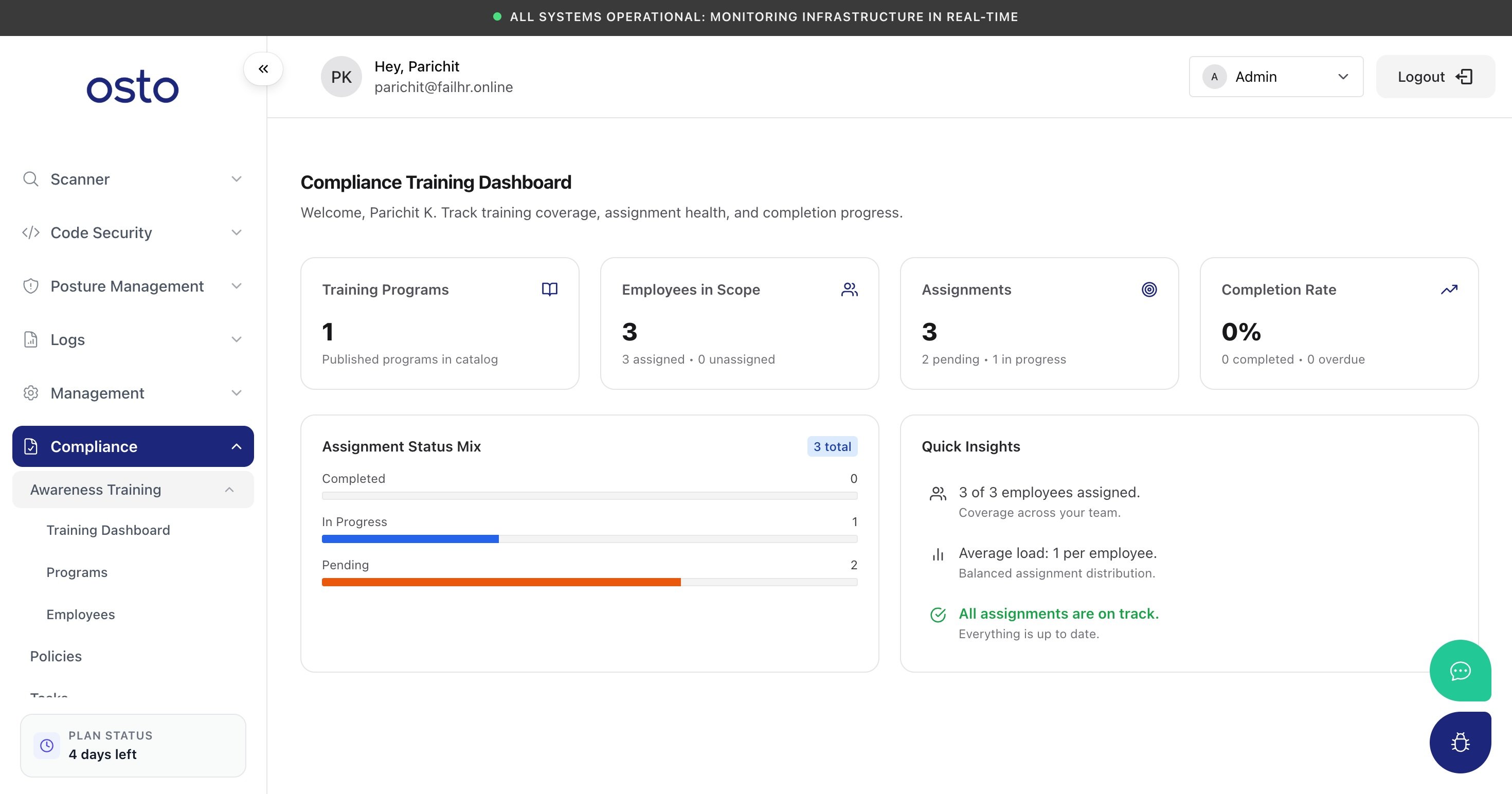
The Training Dashboard — coverage, assignment health, and completion at a glance.
Below the KPIs, an Assignment Status Mix bar (Completed / In Progress / Pending) and Quick Insights summarize coverage, average load per employee, and whether everything is on track.
Programs
The Programs page is your training catalog. Create a program from scratch or Add starter content — a ready-made Security Awareness Training program covering core cybersecurity topics. Each program can be edited, duplicated, or deleted. Open View Details on a program to manage its settings and assignments: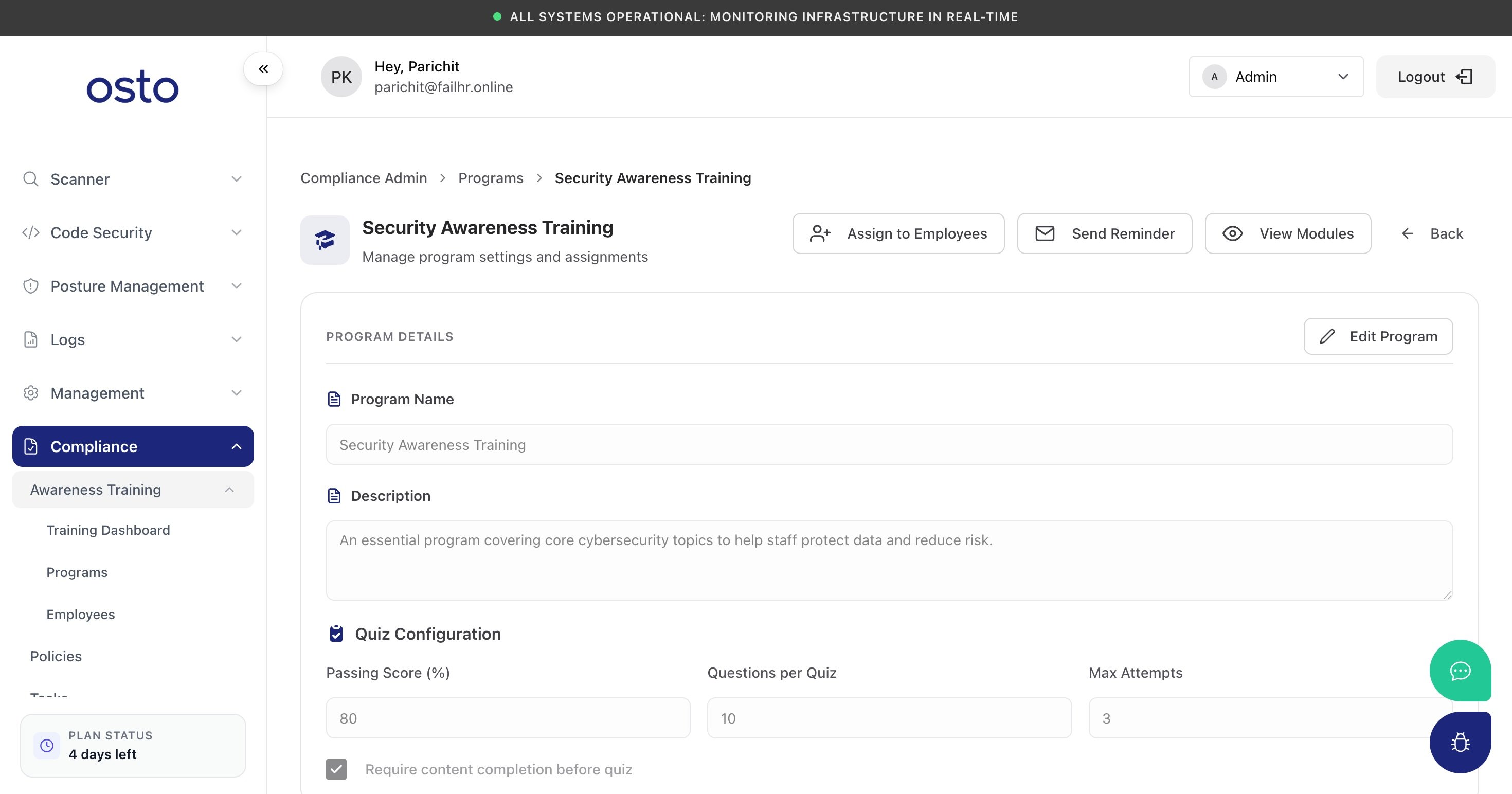
A program's details and quiz configuration.
- Program details — name and description.
- Quiz configuration — set the passing score, questions per quiz, max attempts, and whether learners must finish the content before the quiz.
- Assign to Employees / Send Reminder — roll the program out and nudge people who haven’t finished.
Modules
View Modules opens the program’s lessons. The starter pack ships with eight modules — Passwords, Data Handling, Computer Theft, Phishing & Ransomware, Removable Media, Vishing, Internet Downloads, and Public Wi-Fi — and you can Add Module or Manage Module to edit each one’s content items and quiz questions.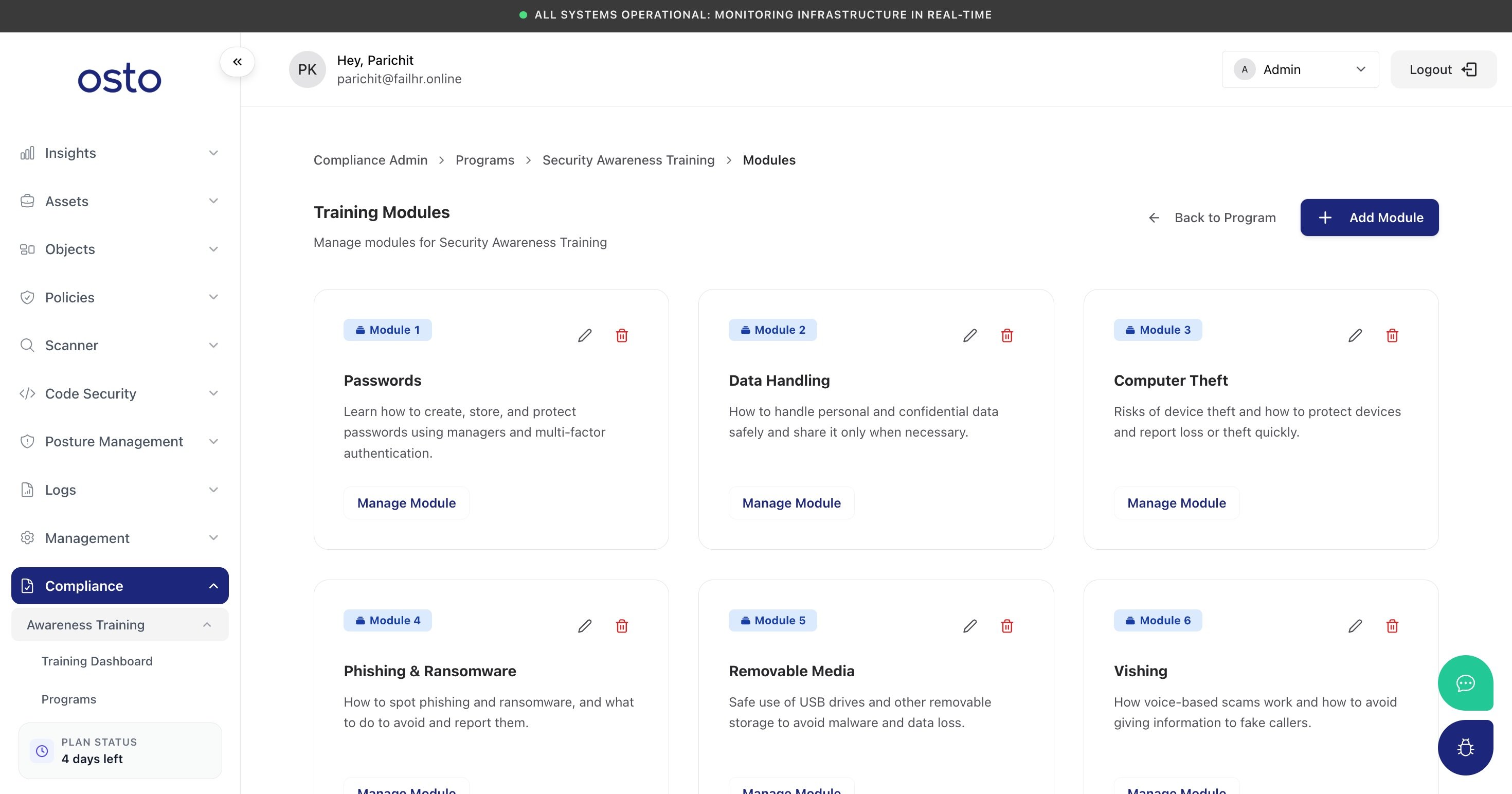
Training modules — eight starter topics you can edit and extend.
Employees
The Employees page is where you manage who is being trained. It gives you a single, roster-wide view of every employee’s training status and progress, surfaces anyone who hasn’t been assigned a program yet, and is the place you roll programs out and chase down completions. Use it to keep coverage at 100% and to evidence — for an audit — that your people have been trained.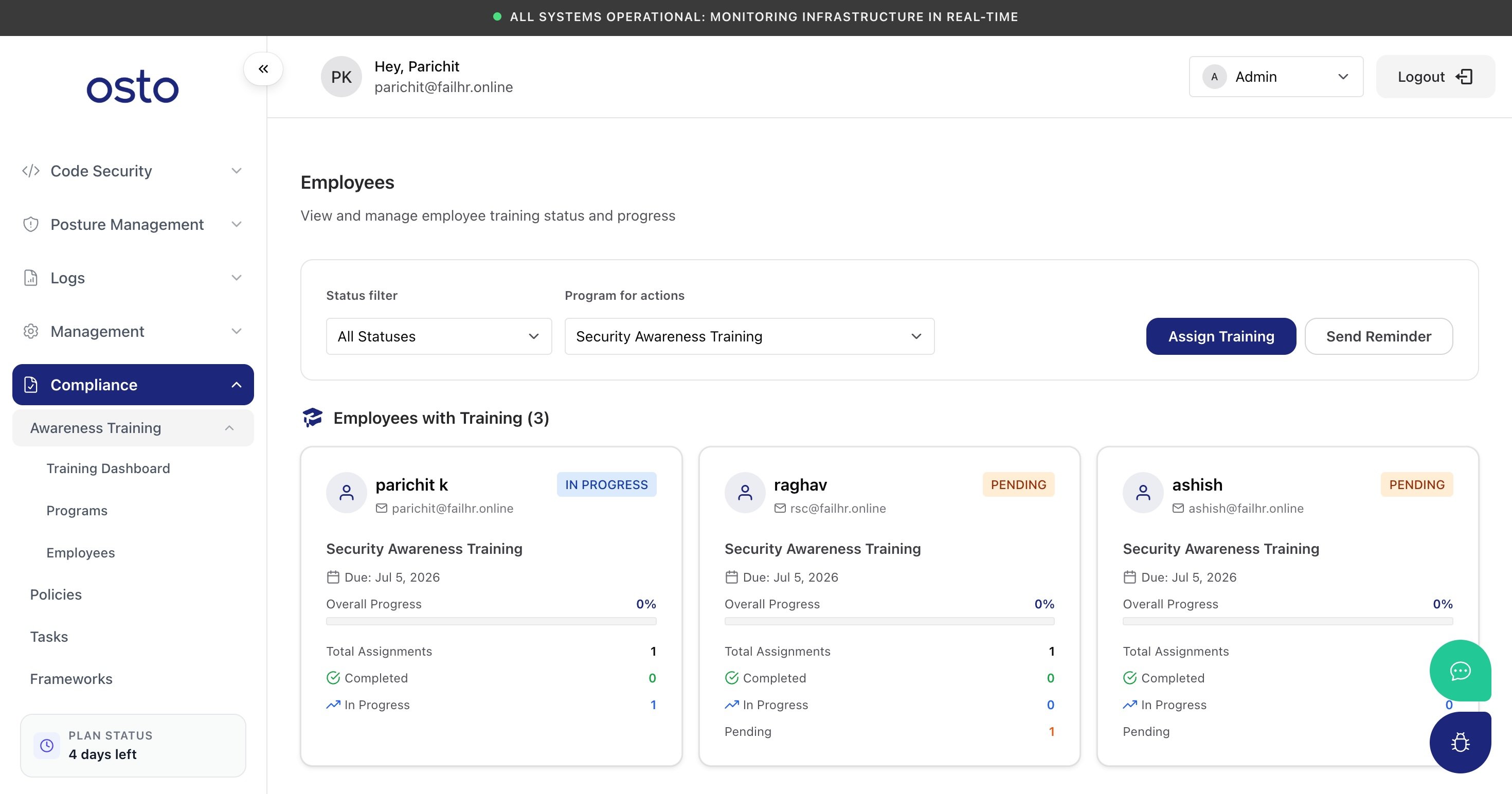
The Employees page — each person's training status and assignment actions.
Employee experience
Switching the top-right role selector to Employee opens the Compliance Center — a self-service portal where employees see exactly what needs their attention: assigned training and policy acknowledgments.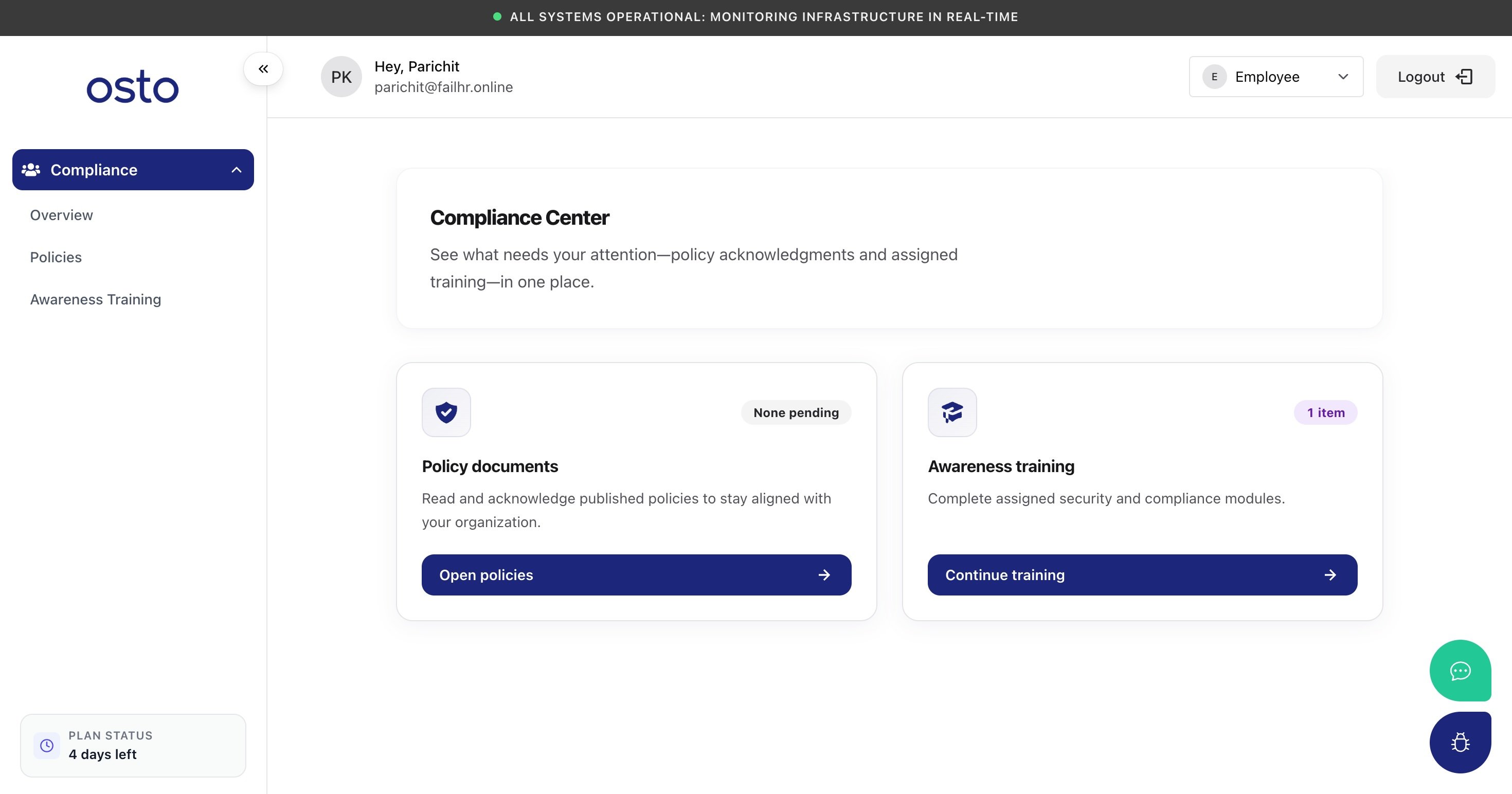
The employee Compliance Center — assigned training and policy acknowledgments in one place.
Completing training
From Awareness Training, an employee sees each assigned program with its progress and due date, and clicks Continue to keep going. A program is made up of modules that unlock in order — you finish one before the next opens. Inside a module, content is delivered step by step (you can’t skip ahead). Steps include reading lessons (with key takeaways) and short video lessons, each with an estimated time: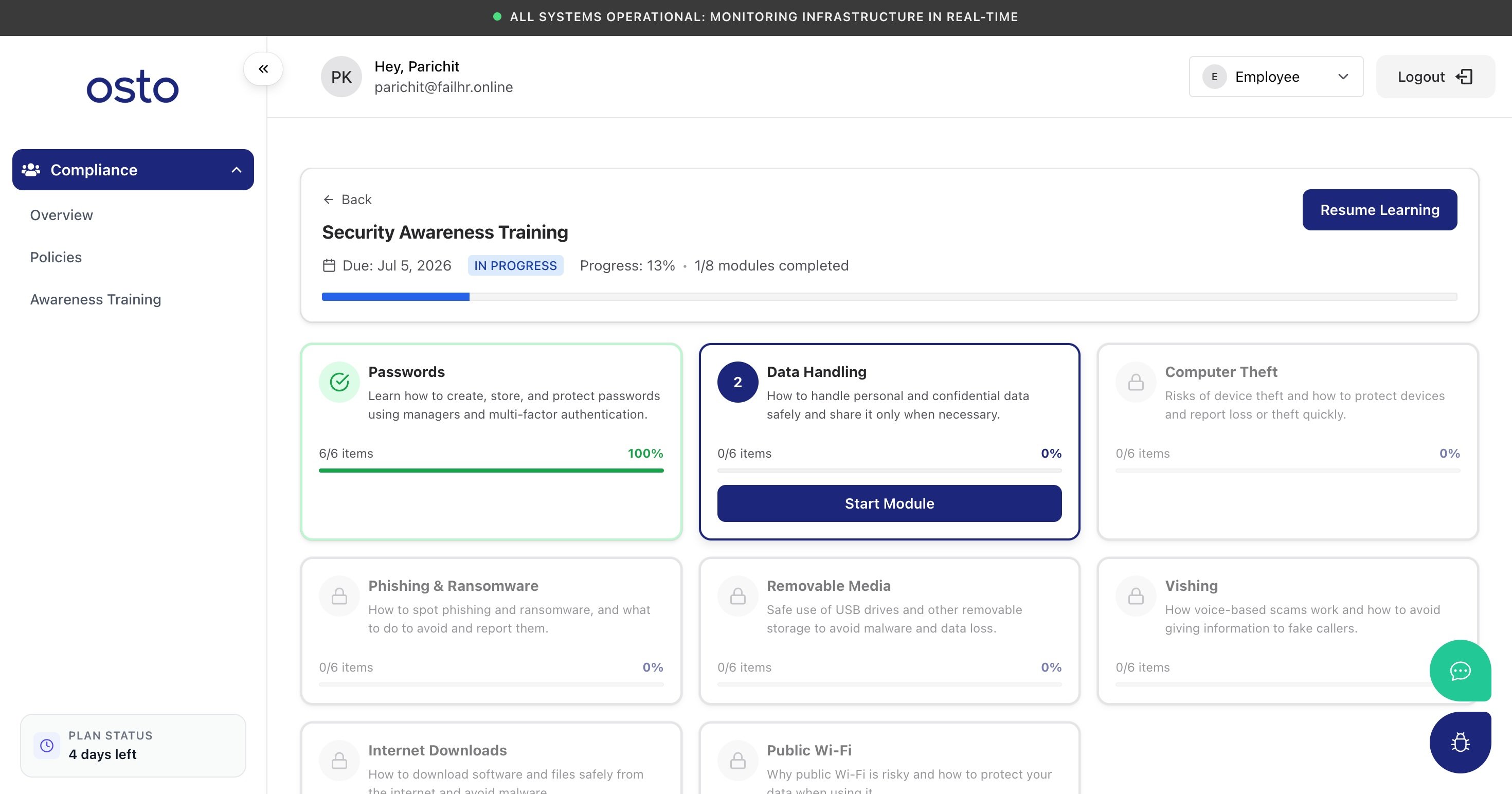
A module step — reading and video lessons delivered in order, with progress tracking.
Acknowledging policies
The Policies tab is where employees read and acknowledge the company policies their organization has published. Until policies are approved and published (from the admin Policies workflow), this page shows an empty state: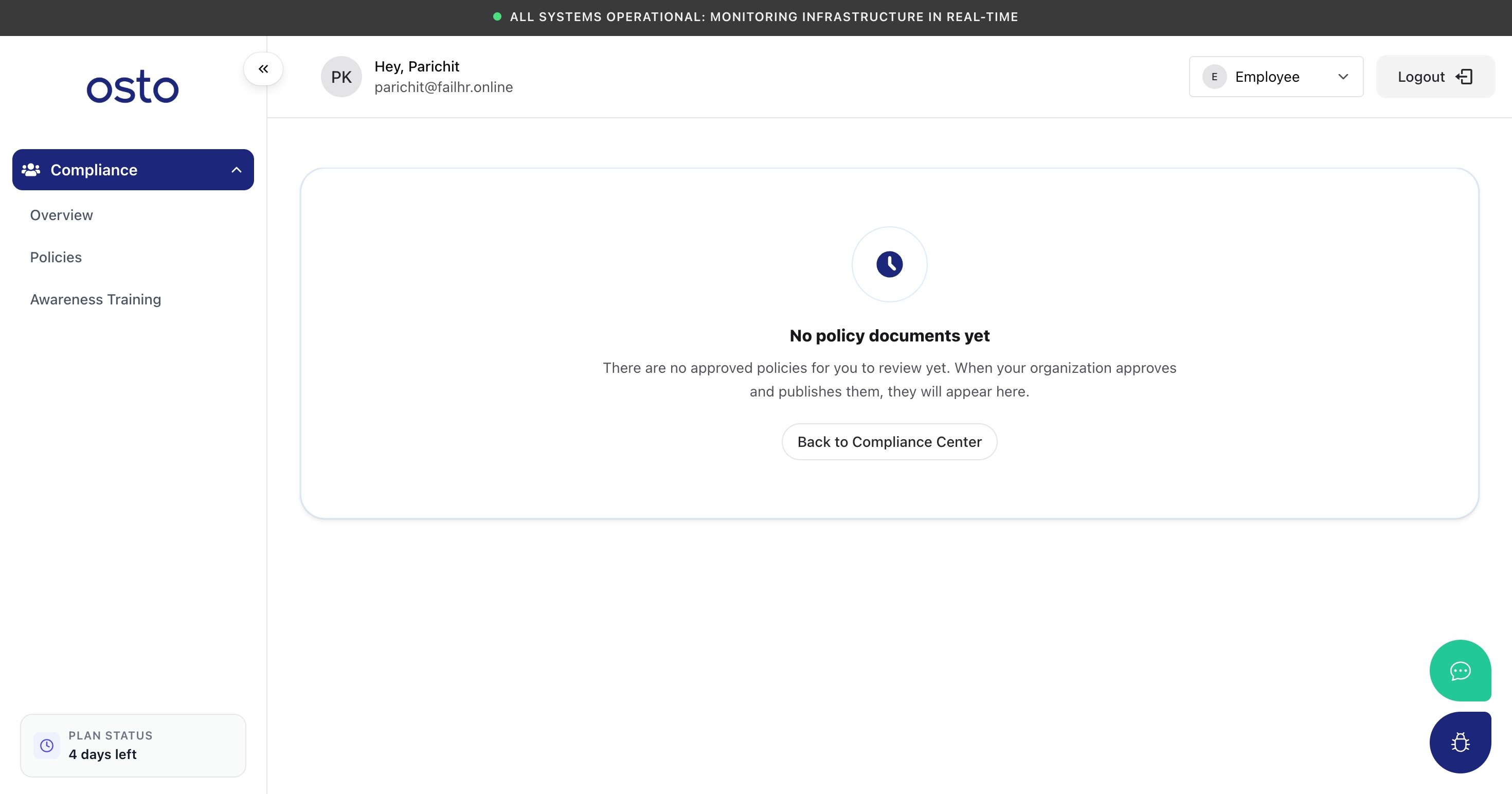
The employee Policies tab — published policies appear here to read and acknowledge.
Policies only appear for employees to acknowledge once an admin has taken them through Compliance → Policies (set up → draft → approve → publish).